
Travel Journal Scrapbook Infographic
Generates a hand-drawn, bullet-journal style travel infographic featuring taped photos, sketch doodles, and categorized text sections for city guides.
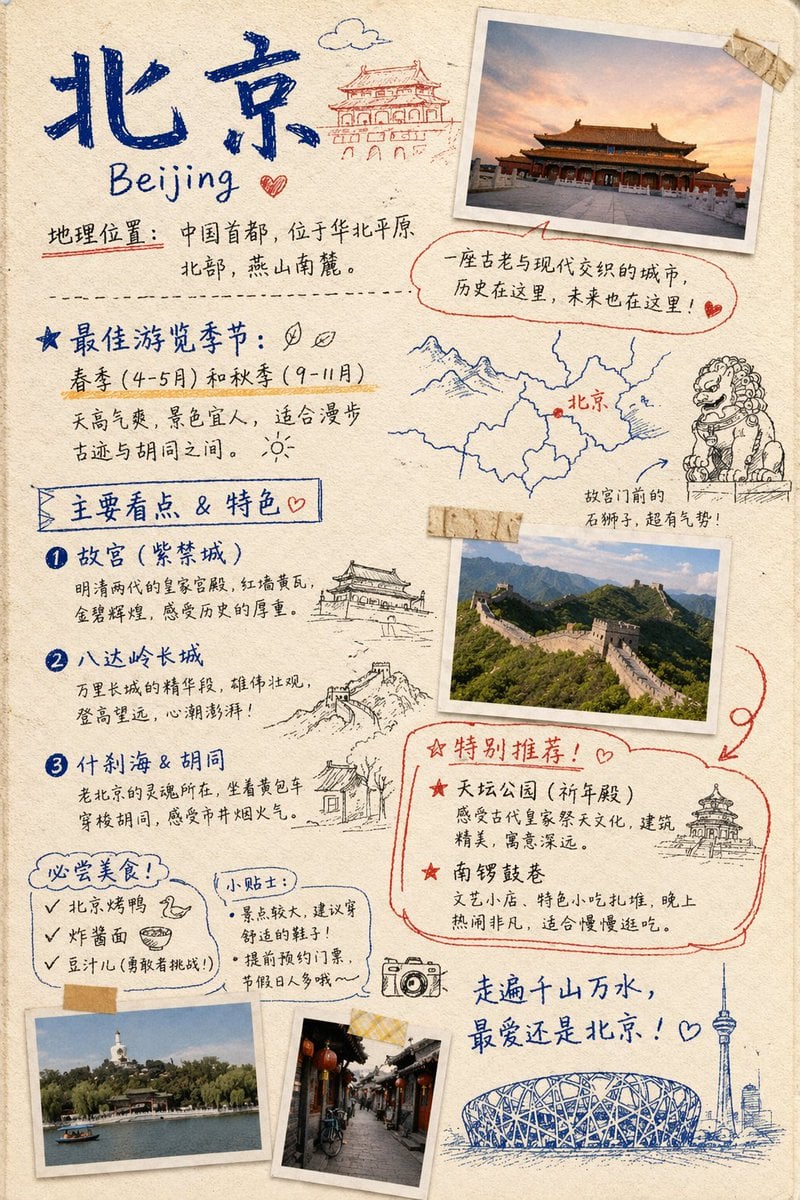
- Prompt included
- Model and format preset
- Premium template
The prompt behind this image
Copy the exact prompt behind Travel Journal Scrapbook Infographic, or open it in the studio and make it yours.
- Type
- travel journal scrapbook page
- Style
- hand-drawn bullet journal, textured beige paper background, blue and red ink handwriting, masking tape, polaroid-style photos, sketch doodles
- Header › Title
- {argument name="city name" default="北京"}
- Header › Subtitle
- {argument name="city name english" default="Beijing"}
- Header › Location Text
- 地理位置:中国首都,位于华北平原北部,燕山南麓。
- Header › Doodle
- traditional Chinese gate building
- Photos › Count
- 4
- Photos › Descriptions
- Forbidden City at sunset with masking tape, Great Wall of China landscape with masking tape, Beihai Park with white stupa, Traditional Hutong alleyway with red lanterns
- Layout › Sections › 0 › Title
- 最佳游览季节:
- Layout › Sections › 0 › Position
- mid-left
- Layout › Sections › 0 › Labels
- 春季 (4-5月) 和秋季 (9-11月)
- Layout › Sections › 0 › Doodles
- two leaves, sun
- Layout › Sections › 1 › Title
- Map and Lion
- Layout › Sections › 1 › Position
- mid-right
- Layout › Sections › 1 › Labels
- 北京, 故宫门前的石狮子,超有气势!
- Layout › Sections › 1 › Doodles
- map with red dot, stone guardian lion
- Layout › Sections › 2 › Title
- 主要看点 & 特色
- Layout › Sections › 2 › Position
- left-middle
- Layout › Sections › 2 › Count
- 3
- Layout › Sections › 2 › Labels
- {argument name="main attraction 1" default="故宫 (紫禁城)"}, {argument name="main attraction 2" default="八达岭长城"}, 什刹海 & 胡同
- Layout › Sections › 2 › Doodles
- traditional pavilion, Great Wall segment, traditional house
- Layout › Sections › 3 › Title
- 特别推荐!
- Layout › Sections › 3 › Position
- bottom-right
- Layout › Sections › 3 › Count
- 2
Raw JSON
{ "type": "travel journal scrapbook page", "style": "hand-drawn bullet journal, textured beige paper background, blue and red ink handwriting, masking tape, polaroid-style photos, sketch doodles", "header": { "title": "{argument name=\"city name\" default=\"北京\"}", "subtitle": "{argument name=\"city name english\" default=\"Beijing\"}", "location_text": "地理位置:中国首都,位于华北平原北部,燕山南麓。", "doodle": "traditional Chinese gate building" }, "photos": { "count": 4, "descriptions": [ "Forbidden City at sunset with masking tape", "Great Wall of China landscape with masking tape", "Beihai Park with white stupa", "Traditional Hutong alleyway with red lanterns" ] }, "layout": { "sections": [ { "title": "最佳游览季节:", "position": "mid-left", "labels": [ "春季 (4-5月) 和秋季 (9-11月)" ], "doodles": [ "two leaves", "sun" ] }, { "title": "Map and Lion", "position": "mid-right", "labels": [ "北京", "故宫门前的石狮子,超有气势!" ], "doodles": [ "map with red dot", "stone guardian lion" ] }, { "title": "主要看点 & 特色", "position": "left-middle", "count": 3, "labels": [ "{argument name=\"main attraction 1\" default=\"故宫 (紫禁城)\"}", "{argument name=\"main attraction 2\" default=\"八达岭长城\"}", "什刹海 & 胡同" ], "doodles": [ "traditional pavilion", "Great Wall segment", "traditional house" ] }, { "title": "特别推荐!", "position": "bottom-right", "count": 2, "labels": [ "天坛公园 (祈年殿)", "南锣鼓巷" ], "doodles": [ "Temple of Heaven" ], "style": "outlined in red ink" }, { "title": "必尝美食!", "position": "bottom-left", "count": 3, "labels": [ "{argument name=\"must try food 1\" default=\"北京烤鸭\"}", "炸酱面", "豆汁儿 (勇敢者挑战!)" ], "doodles": [ "duck head", "bowl of noodles" ] }, { "title": "小贴士:", "position": "bottom-left-center", "count": 2, "labels": [ "景点较大,建议穿舒适的鞋子!", "提前预约门票,节假日人多哦~" ] } ], "footer": { "quote": "走遍千山万水,最爱还是北京!", "doodles": [ "camera", "Bird's Nest stadium", "CCTV tower skyline" ] } } }Reference images included
Travel Journal Scrapbook Infographic needs input media to work. They load alongside the prompt when you open it in the studio.
How to use Travel Journal Scrapbook Infographic in 3 steps
- 1Upload ImagePNG, JPG or paste
Add your photo
Upload the photo the template builds on. The prompt, model and format are already set.
- 2…a portrait of your subject in softgolden-hour light, 85mm…
Personalize
Edit the subject and creative details for your destination.
- 3Generate
Generate
Press Generate — your image is created in PicX Studio, so you can compare it with the original and refine one variable at a time.
More like this
Templates with the same subject, style or setup. Open one to see its prompt.

Japan Travel Brochure Poster
![Nano Banana — One Day In [CITY] Travel Route](https://cdn.picxstudio.com/cdn-cgi/image/format=auto,quality=85,fit=scale-down,onerror=redirect,width=3840,metadata=none/uploads/ai_gezgini_travel_d9a86f2e-c1f5-41a8-a4ef-5d96a8a7a023.jpg)
Nano Banana — One Day In [CITY] Travel Route
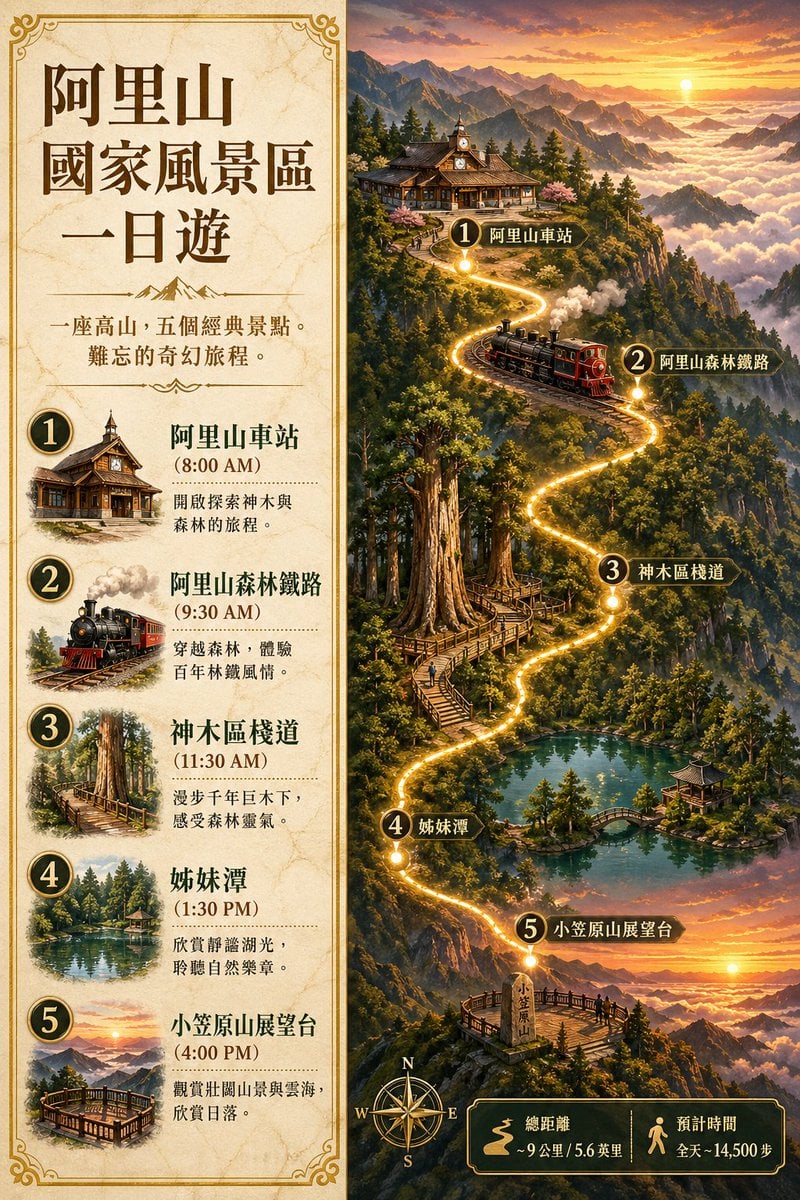
Gpt2 Infographic Edu Visual Alishan One Day Travel Poster
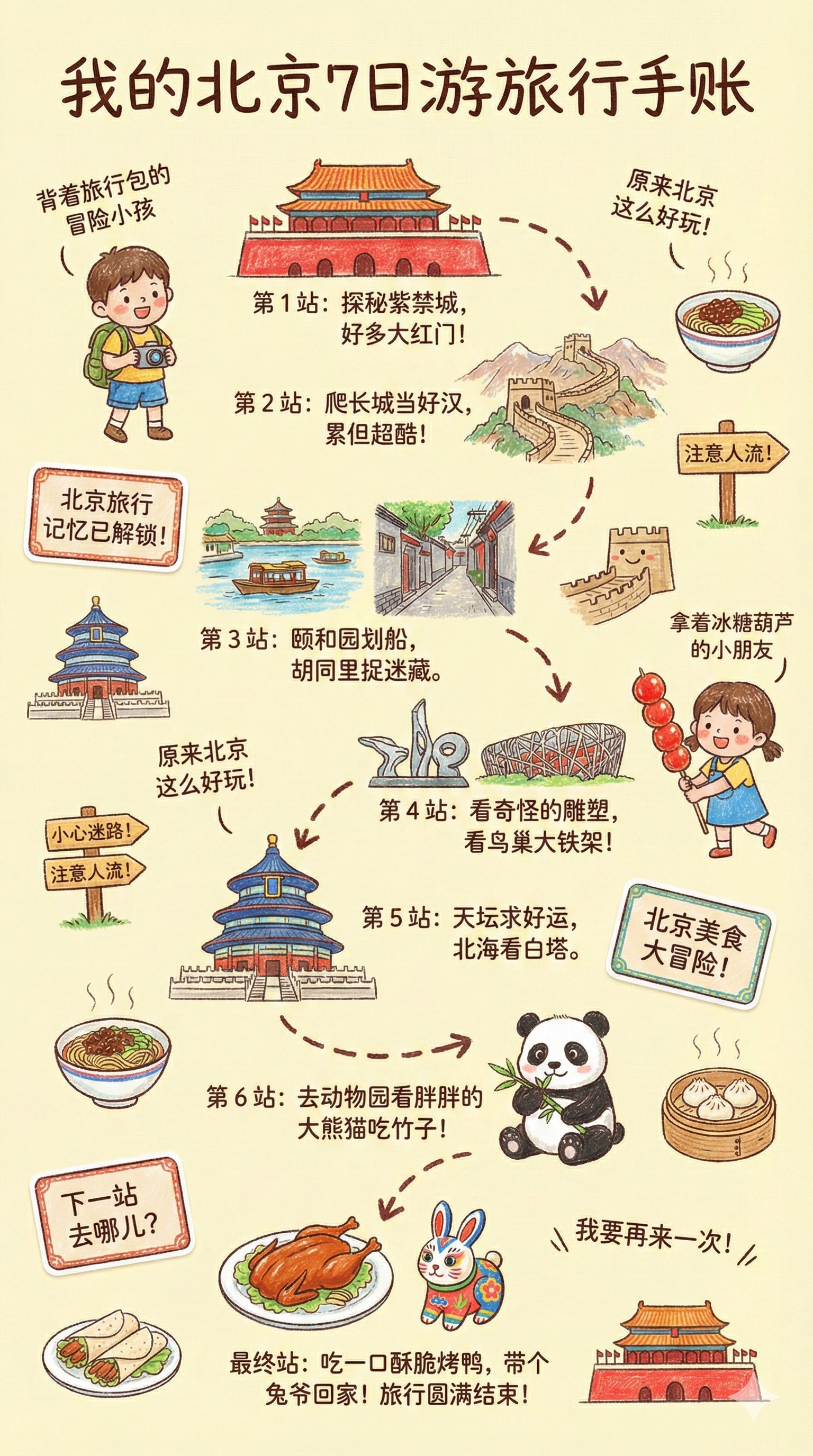
Kids Crayon Travel Journal Illustration
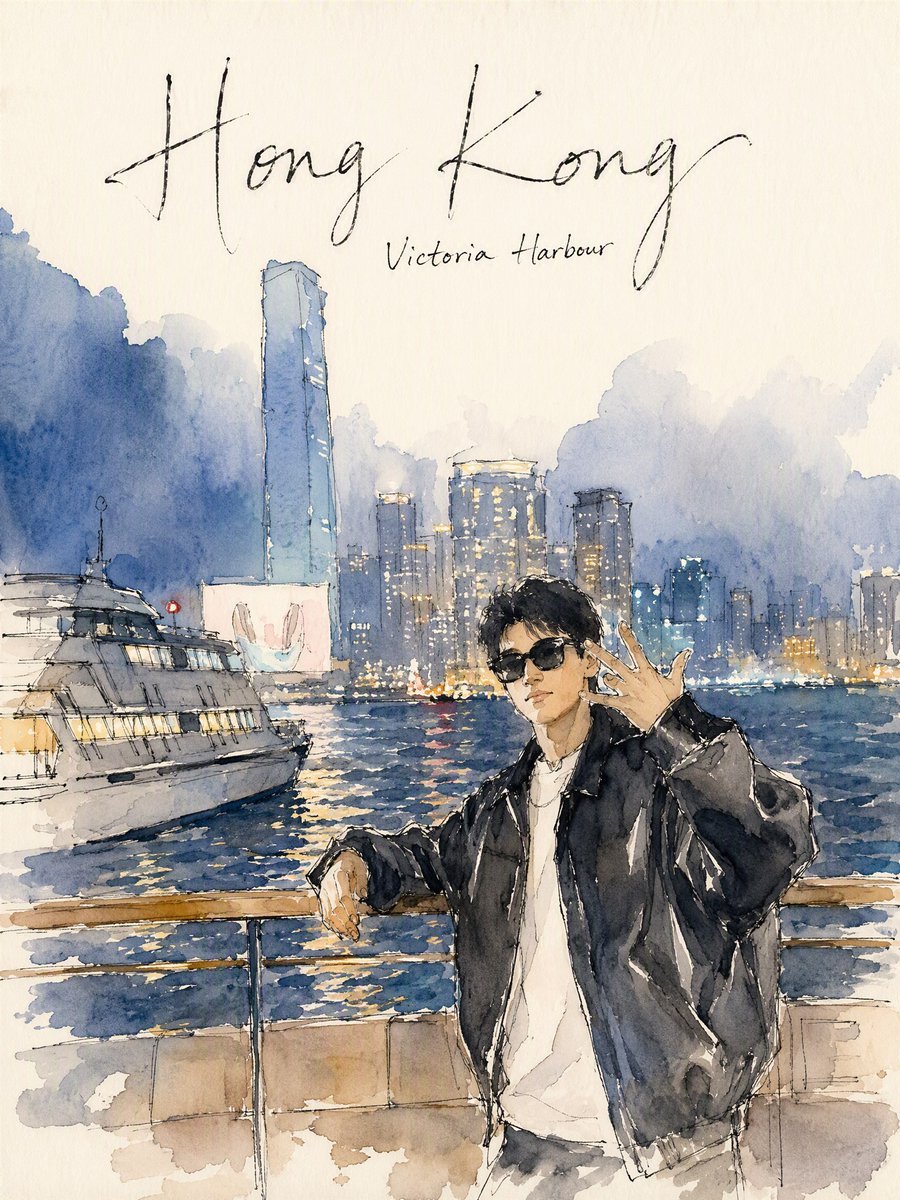
Hong Kong Watercolor Travel Journal
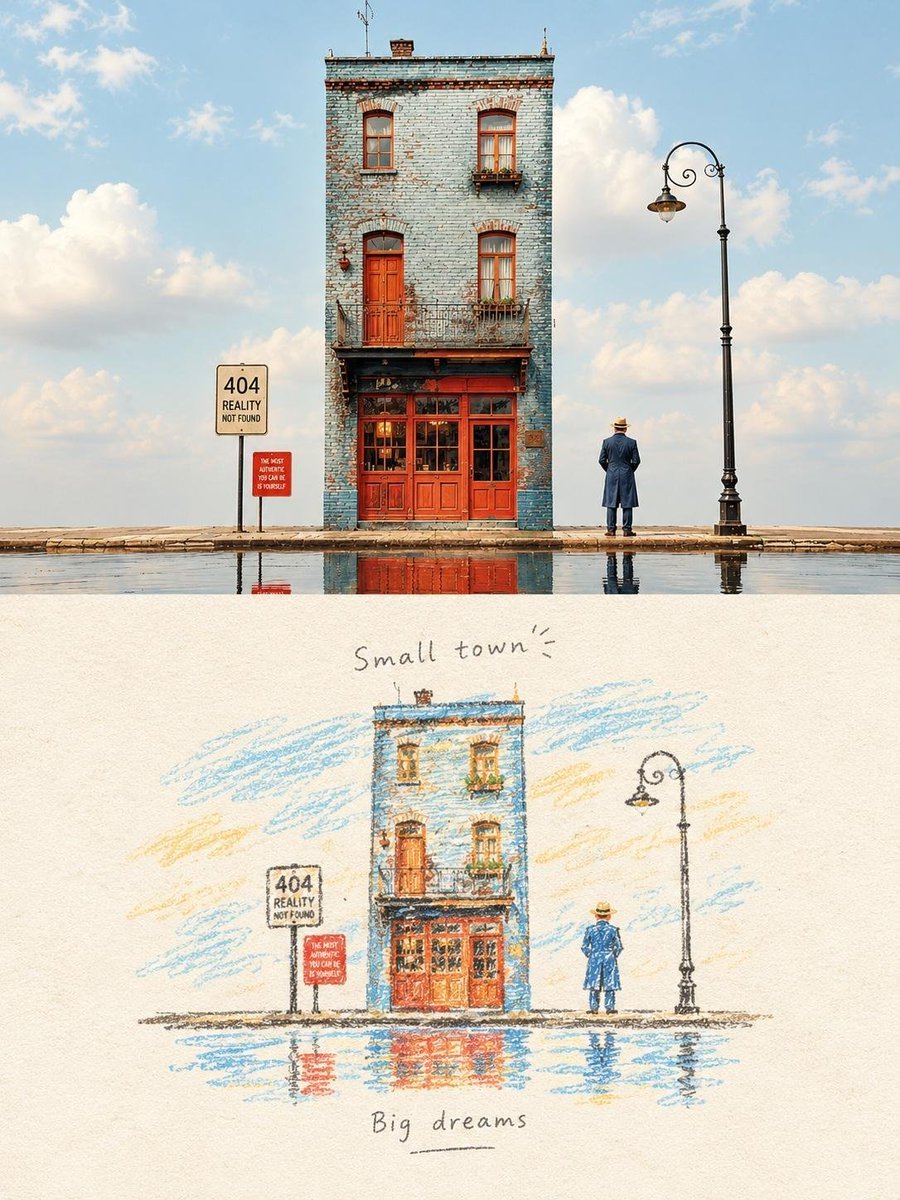
Hand-Drawn Travel Journal Illustration
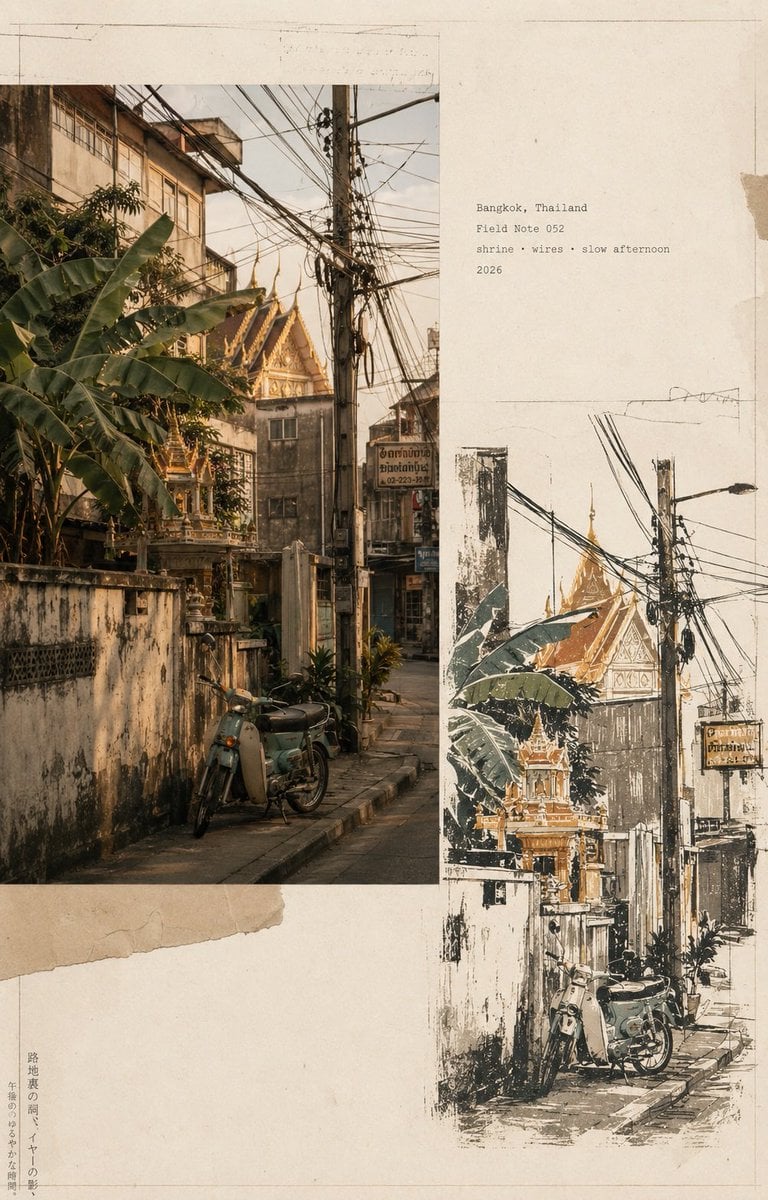
Vintage Travel Journal Collage
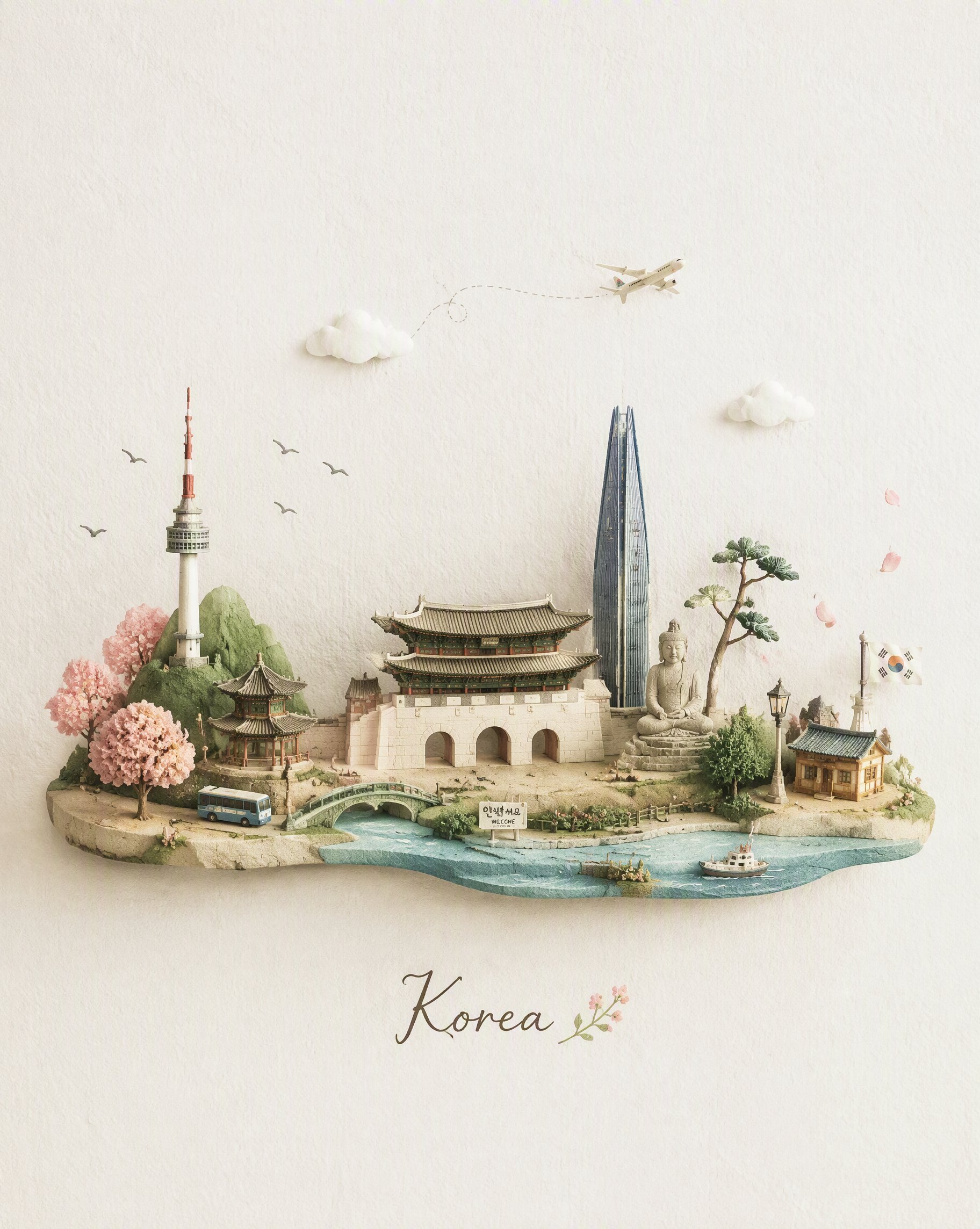
Miniature Travel Diorama Postcard
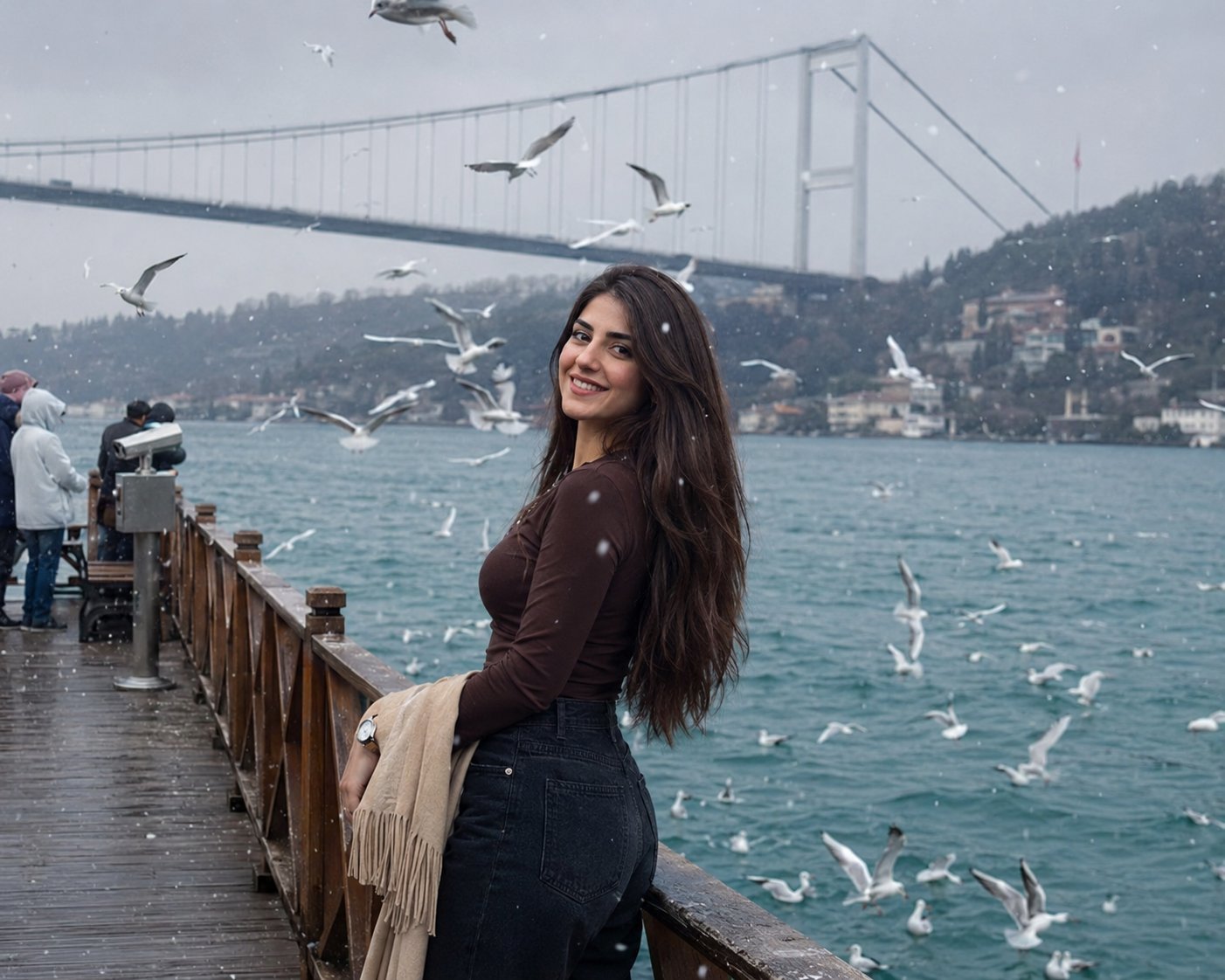
Boardwalk Fashion Portrait
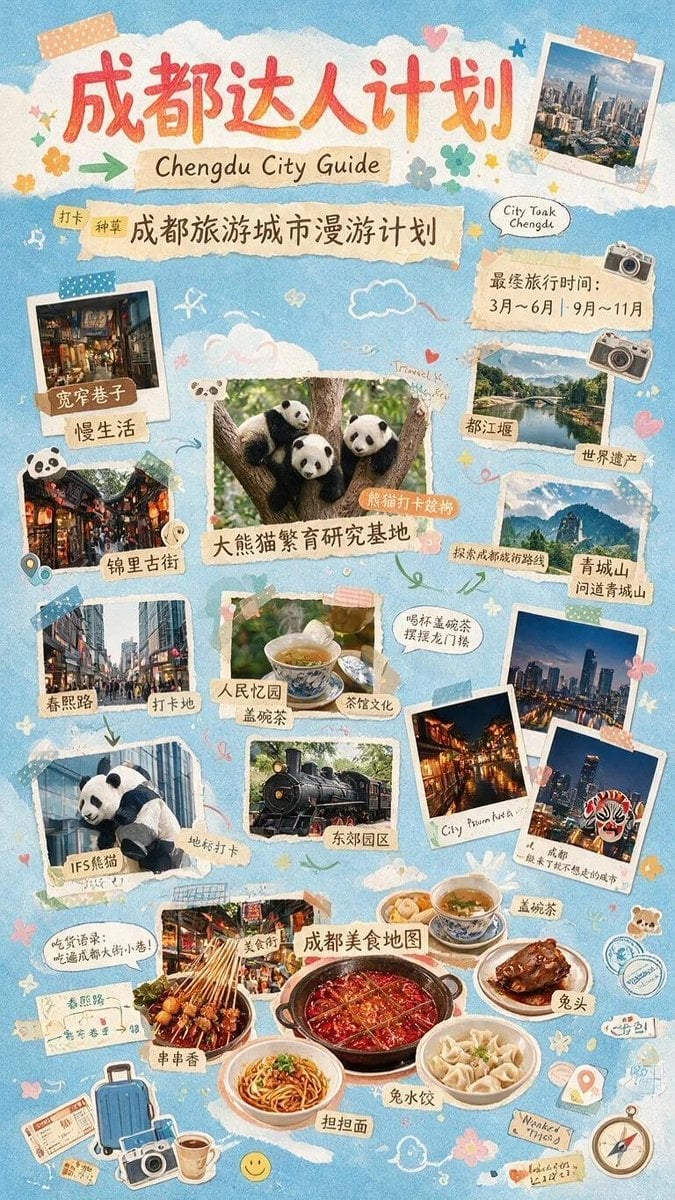
Chengdu Scrapbook Travel Guide Poster
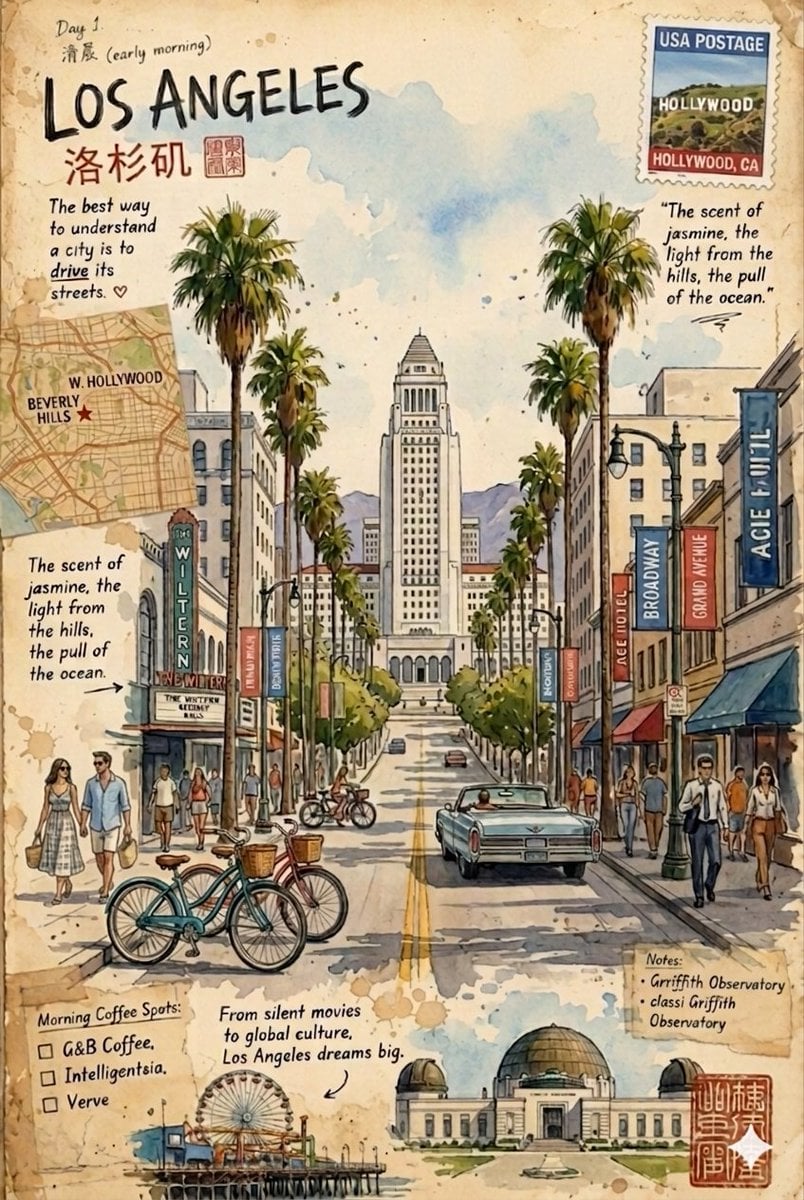
Vintage travel journal watercolor
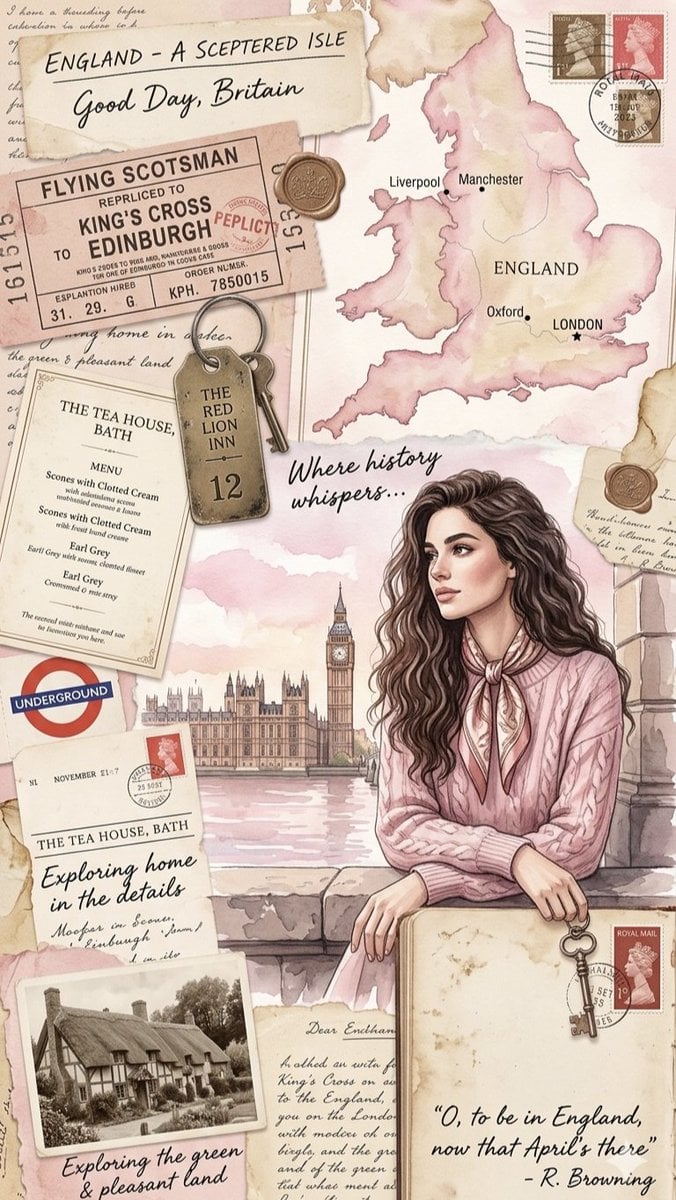
Vintage England Travel Scrapbook
Make it yours
Travel Journal Scrapbook Infographic works as-is. These are the safest ways to change it without losing the look.
Swap the setting
Keep the rest of the prompt and replace the location block. The current setting is “地理位置:中国首都,位于华北平原北部,燕山南麓。”.
Change one field
Copy a single group, rewrite it, and generate again so you can see what that field is doing.
Keep the frame, change the subject
Hold the composition and light of Travel Journal Scrapbook Infographic, then swap wardrobe, props or the person for a new take.
| If the result… | Why | Fix |
|---|---|---|
| The result drifts from the preview | Too many fields changed at once. | Reuse Travel Journal Scrapbook Infographic as-is first, then change one group — subject, light, or setting. |
| GPT Image 2 ignores part of the JSON | Some models flatten or skip nested keys. | Keep the same values and paste them as a short paragraph instead. |
More GPT Image 2 templates
Other prompts made for GPT Image 2.

Six VTuber Japanese Logo Sheet

Realistic Portrait of Woman and Deer

The Vista Modular Condo Poster

AI Model Routing Comparison Infographic

2.5D Anime Art Board

Isometric Productivity Desk Scene

New York Double Exposure Poster

Four-Panel AI Landscape Comparison

Japanese Tatami Lifestyle Magazine Cover

NESCAFÉ Coffee Map Poster
More image prompts
Fresh picks from across the catalog.
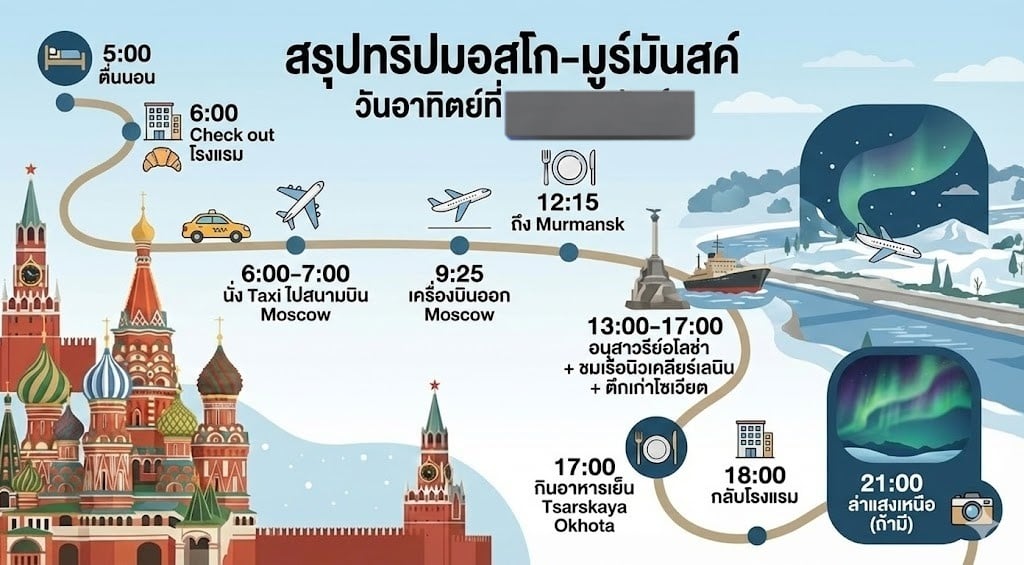
LLM Prompt for Summarizing and Reviewing Travel Plans

Noir Elderly Man by Window
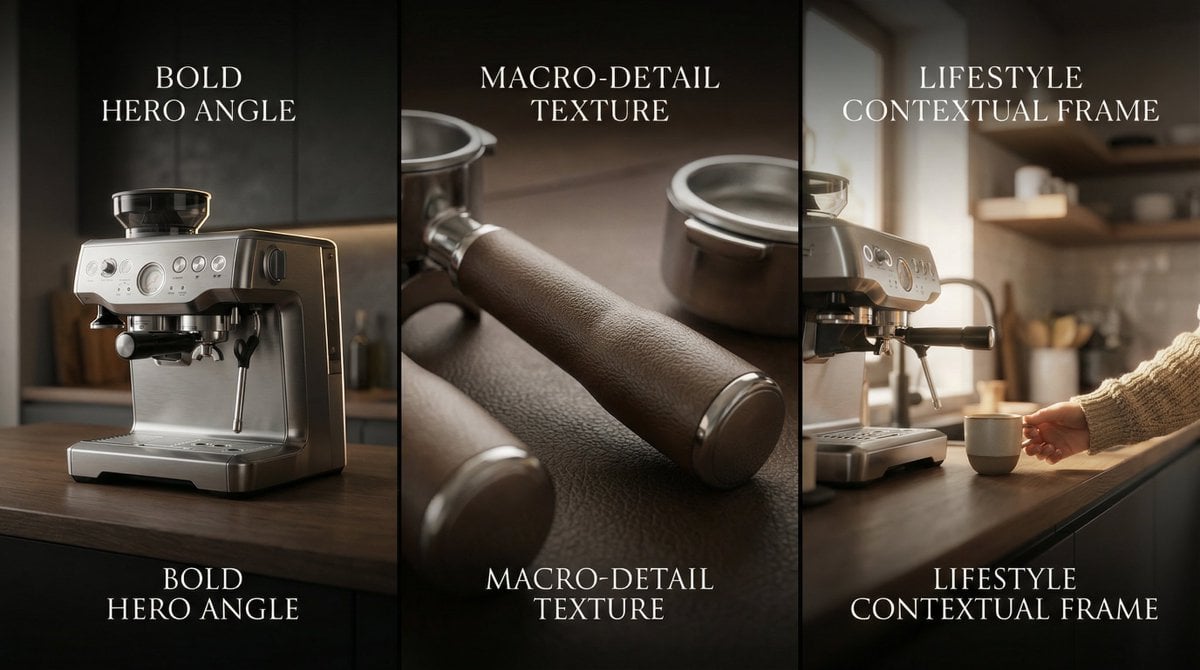
Composite Product Photography Prompt (Etsy Style)
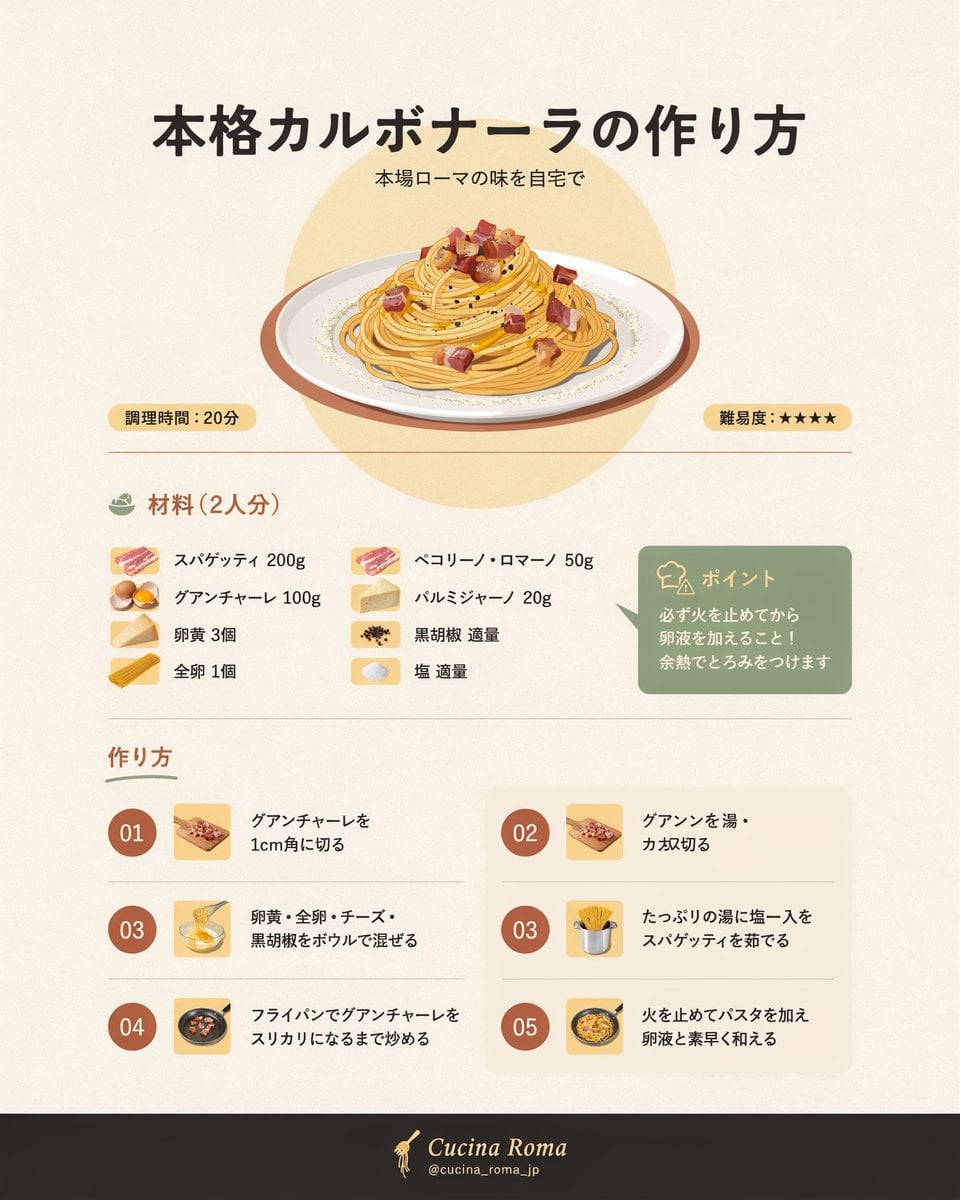
Japanese Carbonara Recipe Infographic
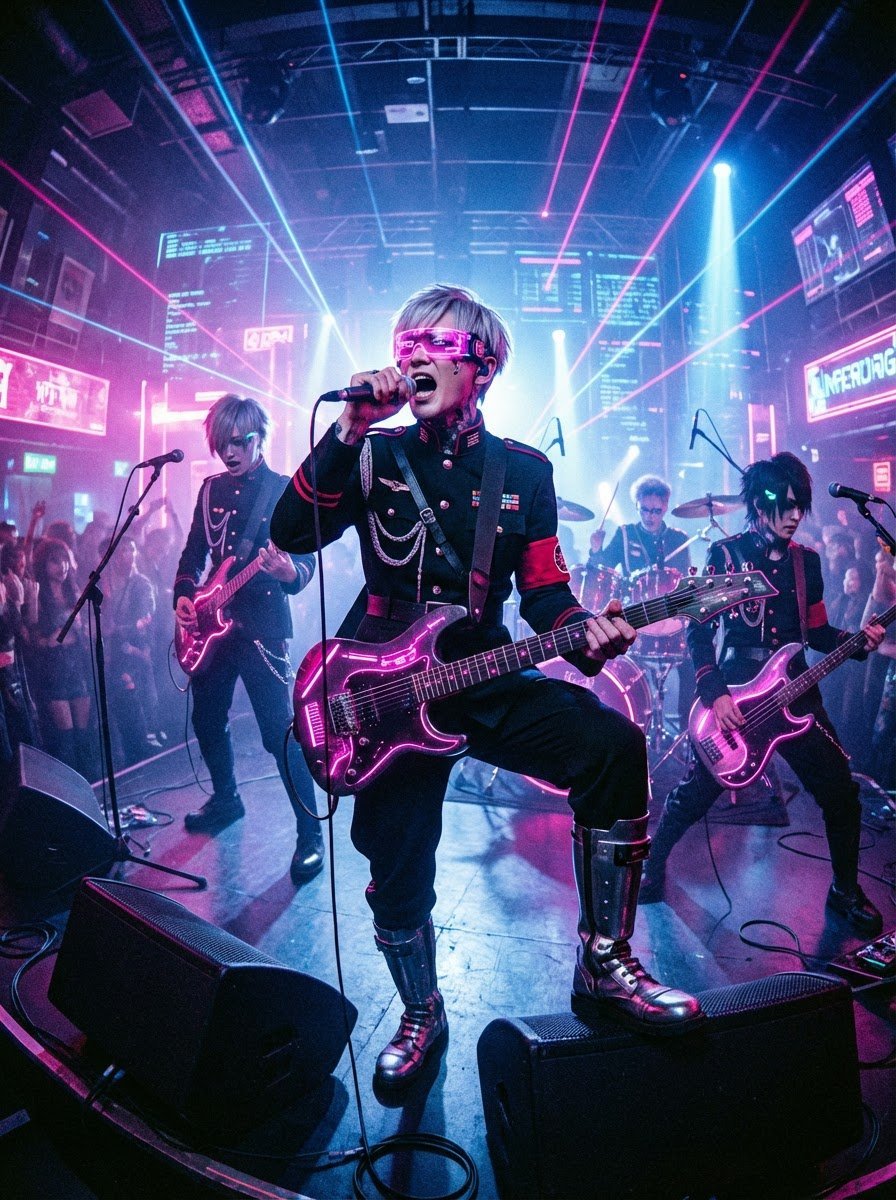
Cyberpunk Japanese Band Live Performance

Visual story cartoon for a Moroccan Arabic joke

Neo-Noir 1920s Gangster Portrait
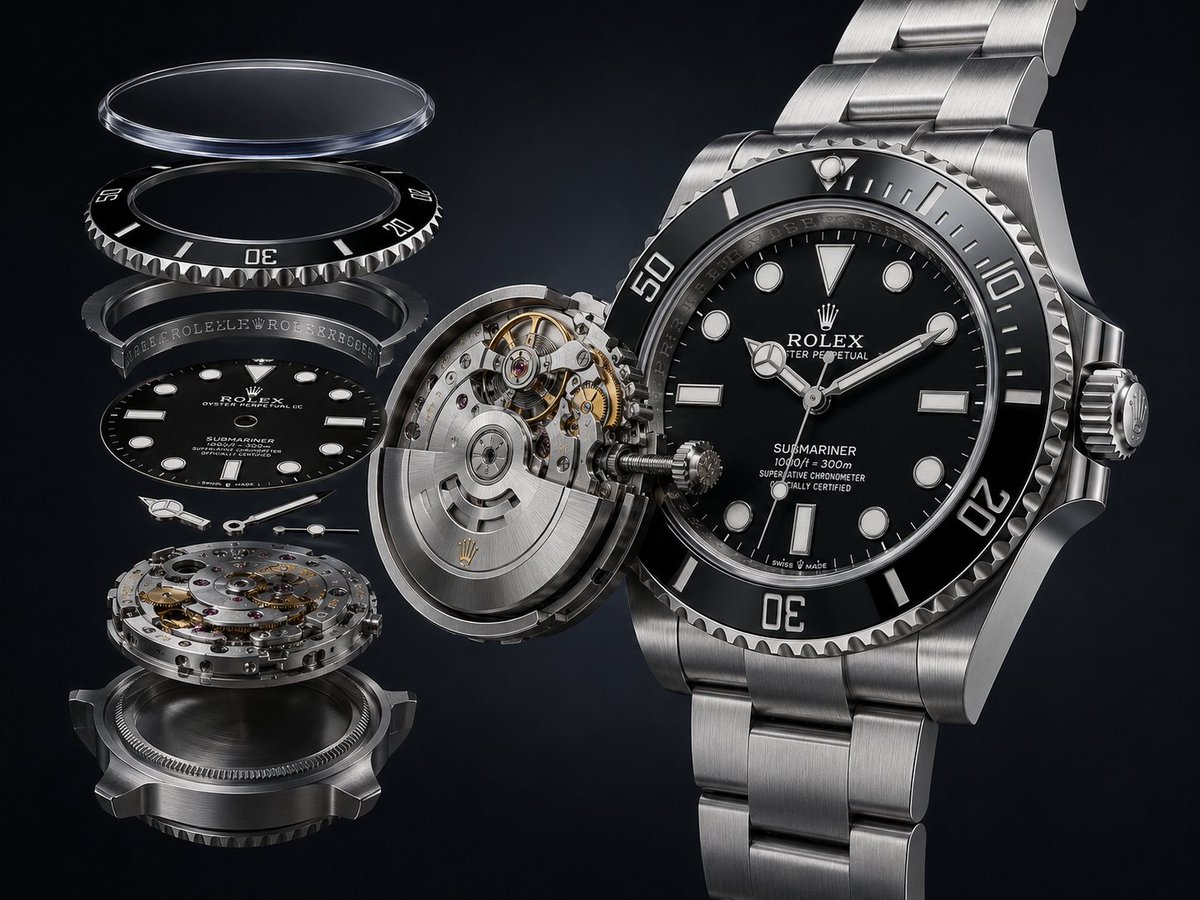
Exploded Luxury Dive Watch Render
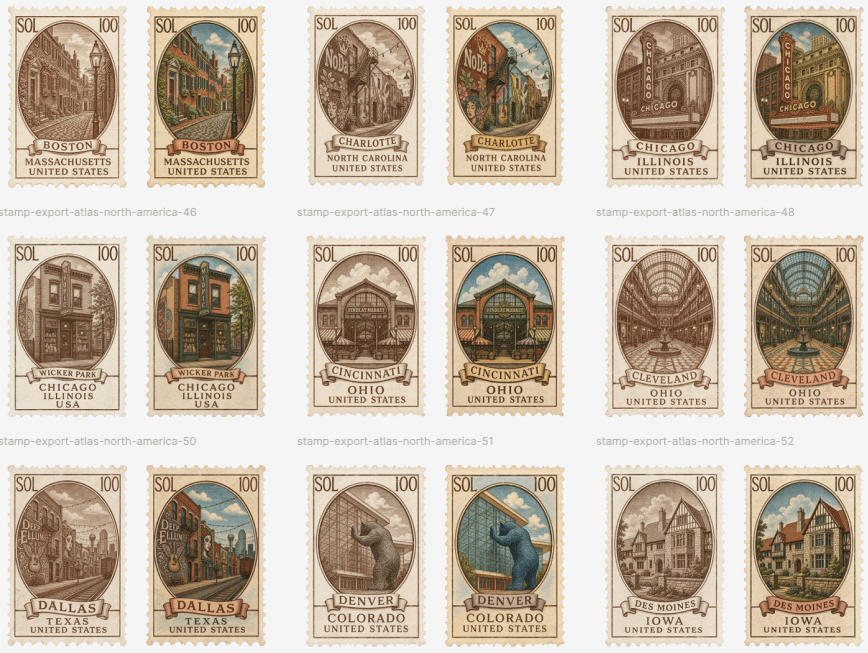
Vintage North America Stamp Grid
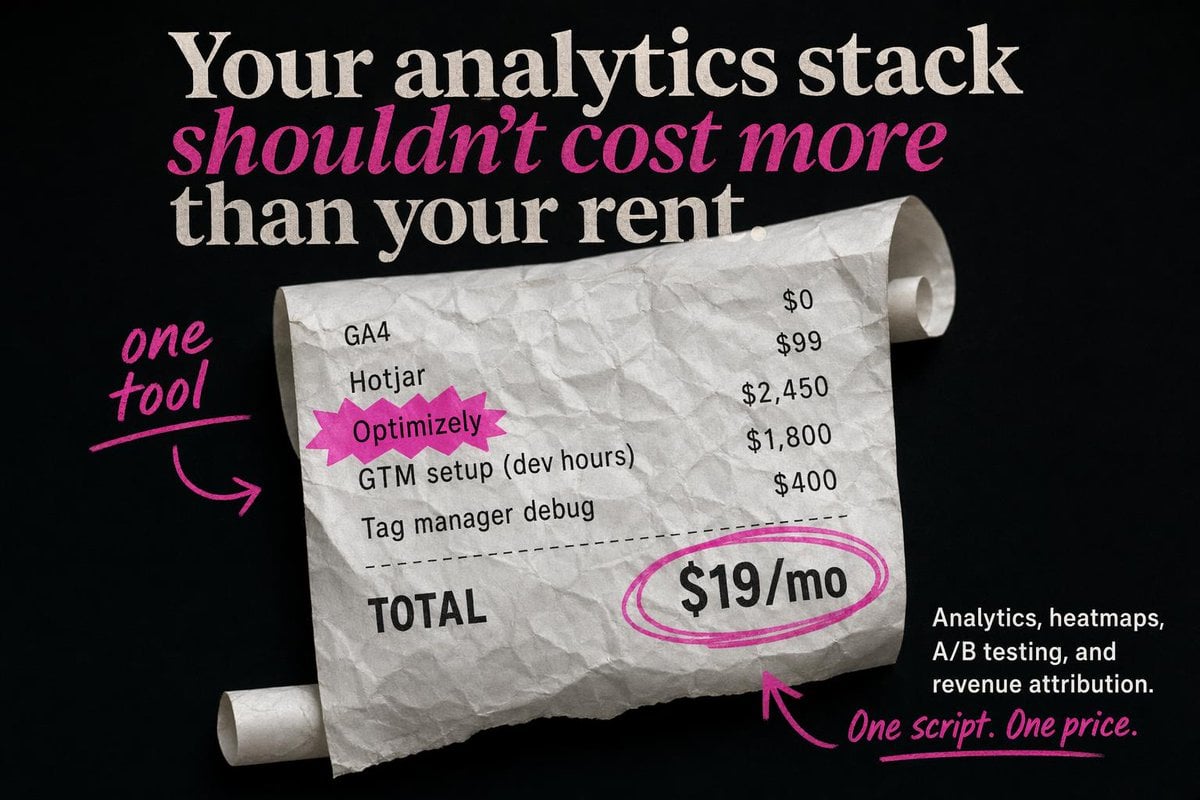
Editorial SaaS Receipt Ad
Browse template categories
Travel Journal Scrapbook Infographic questions
How do I use the Travel Journal Scrapbook Infographic template?
Add your photo if the template asks for one, edit the prompt if you like — the template's model and format are already selected — and press Generate. Your version opens in PicX Studio.
Can I customize the Travel Journal Scrapbook Infographic template?
Yes. You can change the subject, setting, lighting, mood, format, and available model controls before creating your image.
Is the Travel Journal Scrapbook Infographic template free?
Opening and editing this template is free. Generating uses credits, shown on the Generate button when you are signed in.
Which AI model should I use?
Start with GPT Image 2, which is the model associated with this template. You can compare another compatible model for a different finish.
Looking for something else? Browse all templates.

Your photo, any look
Thousands of ready templates for every top image and video model, from one credit balance.