
Mobile AI Chat Screenshot with Transformer Poster
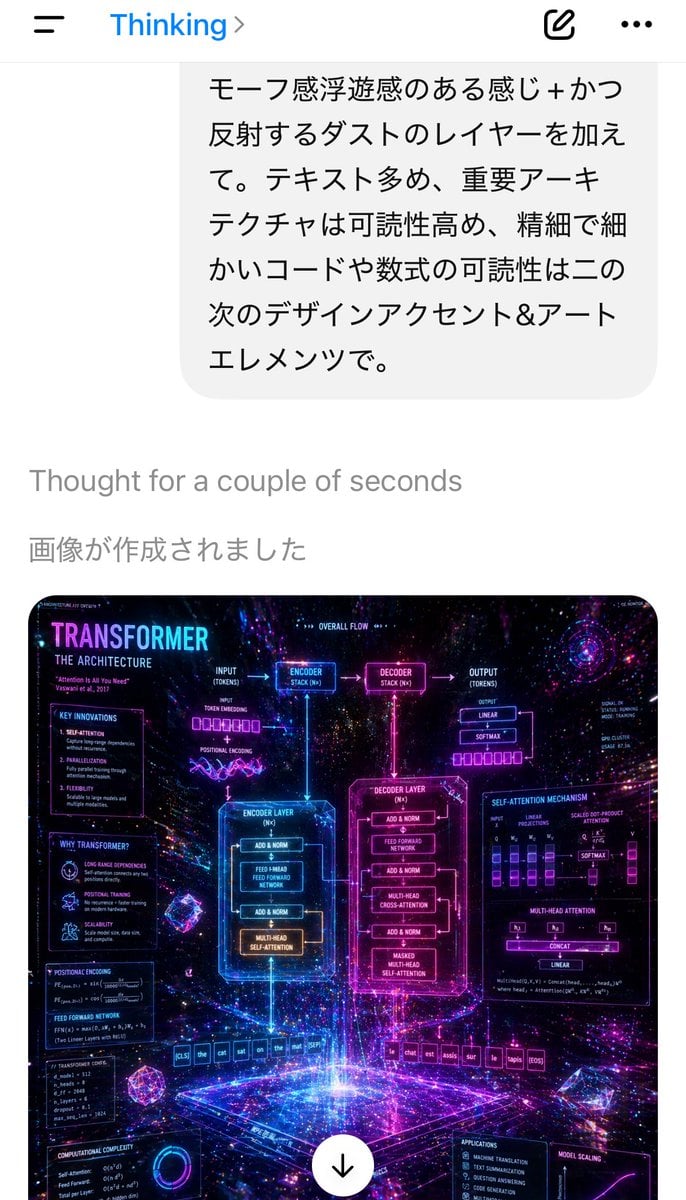
Generates a realistic smartphone chat app screenshot showing a Japanese AI conversation and a neon sci-fi Transformer architecture infographic as the created image result.
- Prompt included
- Model and format preset
- Free template
The prompt behind this image
Copy the exact prompt behind Mobile AI Chat Screenshot with Transformer Poster, or open it in the studio and make it yours.
A smartphone app screenshot in portrait orientation showing an AI chat interface in Japanese, with a clean white background and iOS-style top bar. At the very top, display a left hamburger menu icon, blue text reading “Thinking” with a right chevron, an edit compose icon, and a three-dot menu. Below it, show a large rounded light-gray chat bubble containing 6 lines of Japanese text, exactly: 「モーフ感浮遊感のある感じ+かつ反射するダストのレイヤーを加えて。テキスト多め、重要ーアーキテクチャは可読性高め、精細で細かいコードや数式の可読性は二の次のデザインアクセント&アートエレメンツで。」 Under the bubble, place small light-gray system text reading “Thought for a couple of seconds”, then a larger gray Japanese line reading “画像が作成されました”. In the lower half, show 1 generated image thumbnail with rounded corners: a dense futuristic infographic poster about the Transformer neural network architecture, rendered as glowing neon sci-fi holographic UI art. The poster should have a cosmic deep-space background with stars, purple, magenta, blue, and cyan light trails, reflective particles, volumetric glow, and floating geometric crystals. Large title at top left of the poster: “TRANSFORMER”, with subtitle “THE ARCHITECTURE”. Include 2 large central glowing boxes labeled “ENCODER LAYER” and “DECODER LAYER”, linked by arrows and smaller blocks for “ENCODER STACK (N×)” and “DECODER STACK (N×)”. Add many surrounding labeled panels and formulas, including sections for “KEY INNOVATIONS”, “WHY TRANSFORMERS?”, “POSITIONAL ENCODING”, “FEED FORWARD NETWORK”, “COMPUTATIONAL COMPLEXITY”, “OVERALL FLOW”, “SELF-ATTENTION MECHANISM”, “MULTI-HEAD ATTENTION”, “APPLICATIONS”, and “MODEL SCALING”. Show token rows at the bottom, including an English input sequence like “[CLS] the cat sat on the mat [SEP]” and an output sequence in French-like tokens ending with “[EOS]”. Add tiny charts, equations, attention diagrams, and wiring lines throughout, but keep the overall impression artistic and luminous rather than strictly readable. At the bottom center of the poster thumbnail, overlay a white circular download button with a black downward arrow. The overall screenshot should feel like a real mobile ChatGPT-style interface displaying an AI-generated image result, crisp and modern.
How to use Mobile AI Chat Screenshot with Transformer Poster in 3 steps
- 1Upload ImagePNG, JPG or paste
Add your photo
Upload the photo the template builds on. The prompt, model and format are already set.
- 2…a portrait of your subject in softgolden-hour light, 85mm…
Personalize
Edit the subject and creative details for your destination.
- 3Generate
Generate
Press Generate — your image is created in PicX Studio, so you can compare it with the original and refine one variable at a time.
More like this
Templates with the same subject, style or setup. Open one to see its prompt.
ChatGPT Mobile Photo Carousel Screenshot
AI Chat Screenshot with Anatomy Poster

Japan Travel Brochure Poster

ChatGPT Bonus Banner Screenshot
AI Chat Image Generation Screenshot
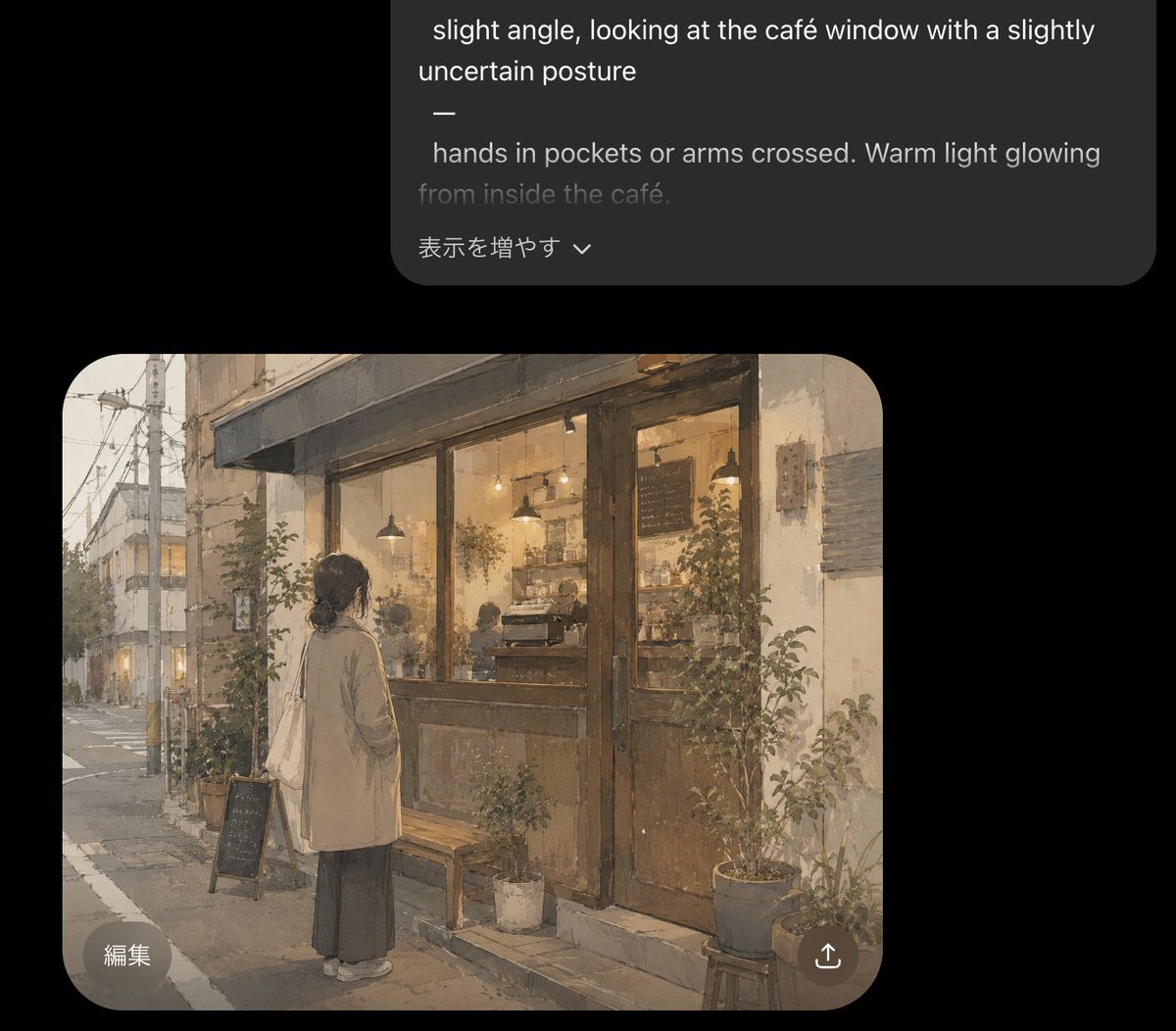
Cozy Café Chat Screenshot
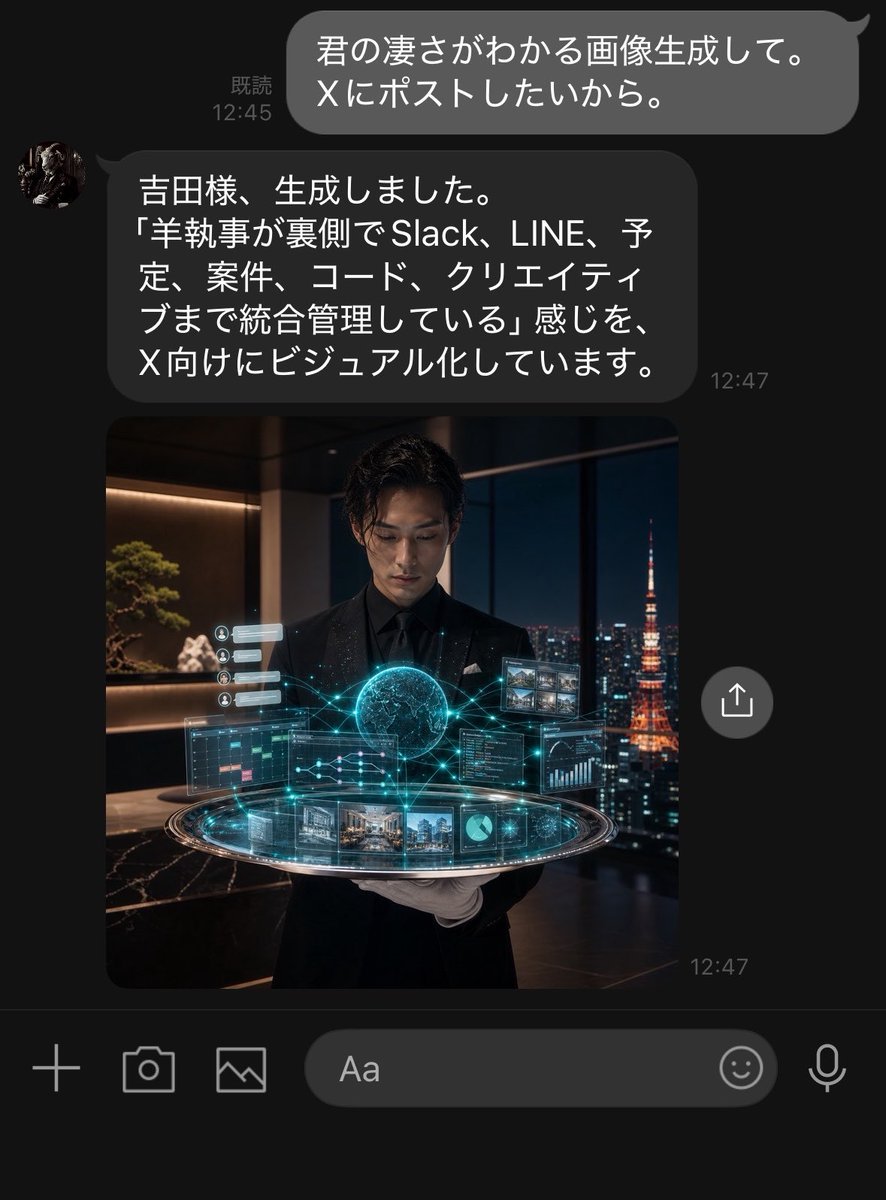
Dark LINE AI Assistant Chat Screenshot
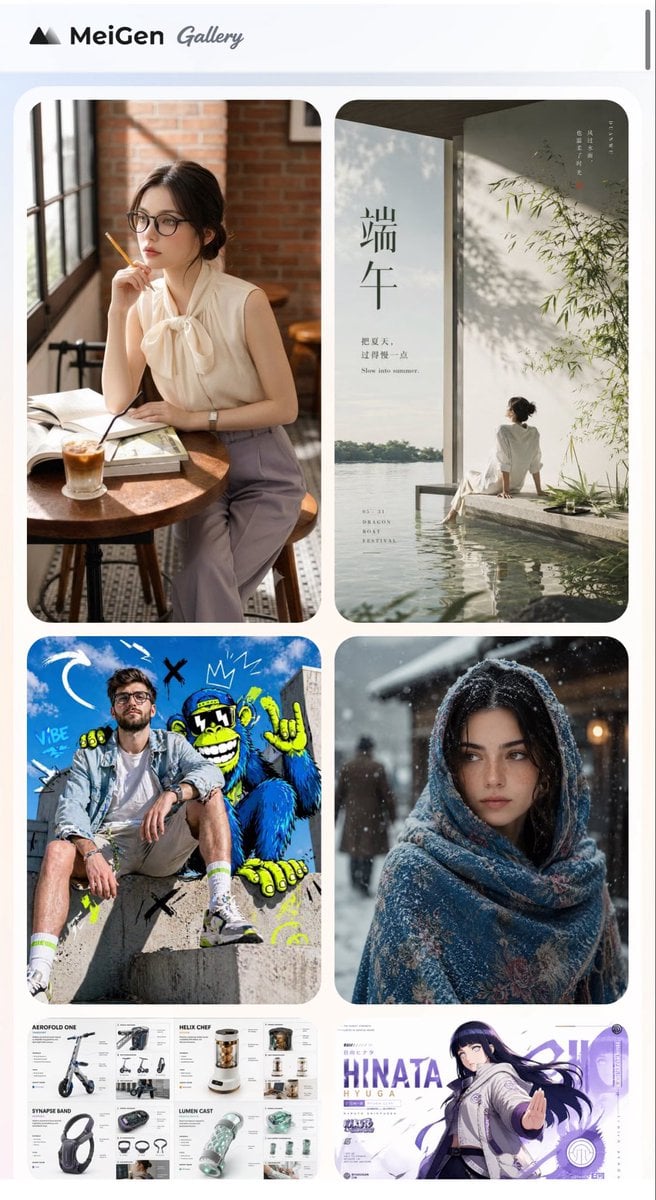
MeiGen AI Gallery Mobile Screenshot
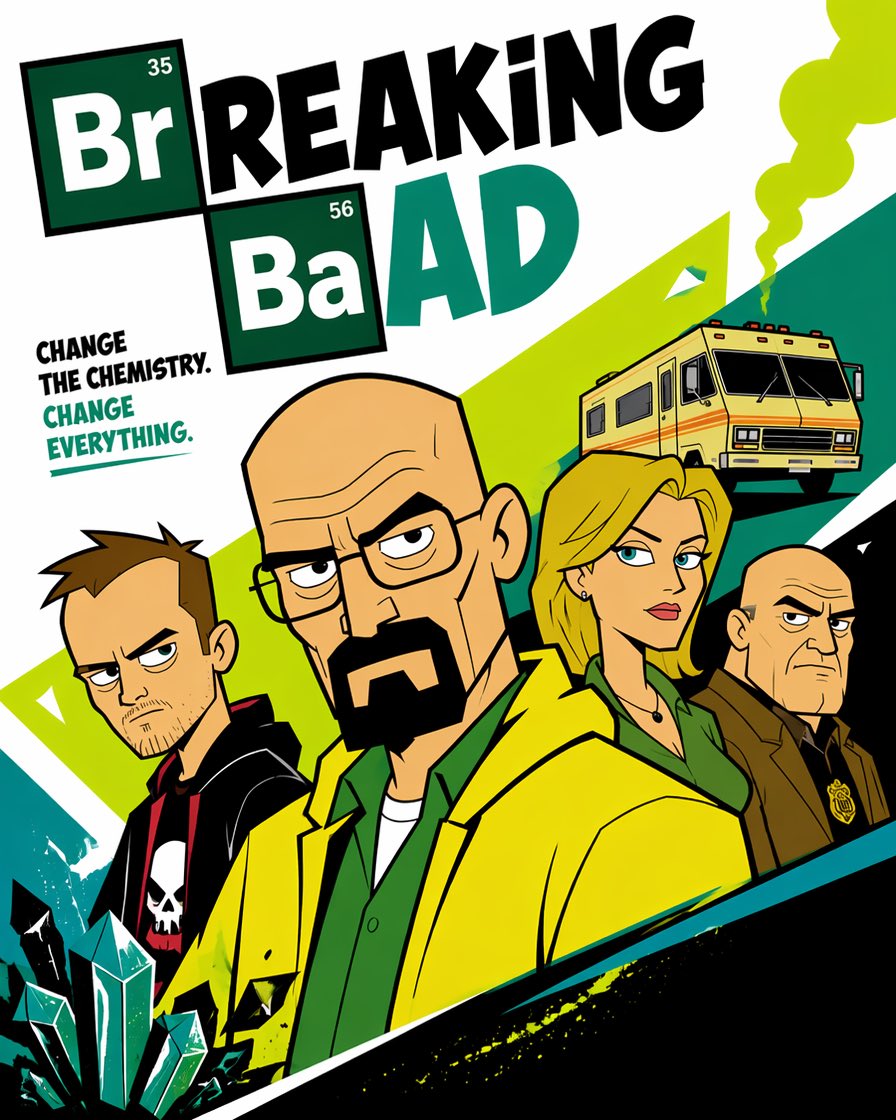
Cartoon TV Show Poster Pack
Trendy Cafe Drink Promo Poster
Urban Fashion Editorial Collage Streetwear Poster
Premium Fashion Editorial Cover Layout System
Make it yours
Mobile AI Chat Screenshot with Transformer Poster works as-is. These are the safest ways to change it without losing the look.
Change one field
Copy a single group, rewrite it, and generate again so you can see what that field is doing.
Keep the frame, change the subject
Hold the composition and light of Mobile AI Chat Screenshot with Transformer Poster, then swap wardrobe, props or the person for a new take.
| If the result… | Why | Fix |
|---|---|---|
| The result drifts from the preview | Too many fields changed at once. | Reuse Mobile AI Chat Screenshot with Transformer Poster as-is first, then change one group — subject, light, or setting. |
| The model over-stylizes the scene | The prose prompt leaves finish and camera underspecified. | Add one camera or lighting sentence and stay on GPT Image 2. |
More GPT Image 2 templates
Other prompts made for GPT Image 2.

Six VTuber Japanese Logo Sheet

Realistic Portrait of Woman and Deer

The Vista Modular Condo Poster

AI Model Routing Comparison Infographic

2.5D Anime Art Board

Isometric Productivity Desk Scene

New York Double Exposure Poster

Four-Panel AI Landscape Comparison

Japanese Tatami Lifestyle Magazine Cover

NESCAFÉ Coffee Map Poster
More image prompts
Fresh picks from across the catalog.
Fantasy Garden in a Glass Bottle
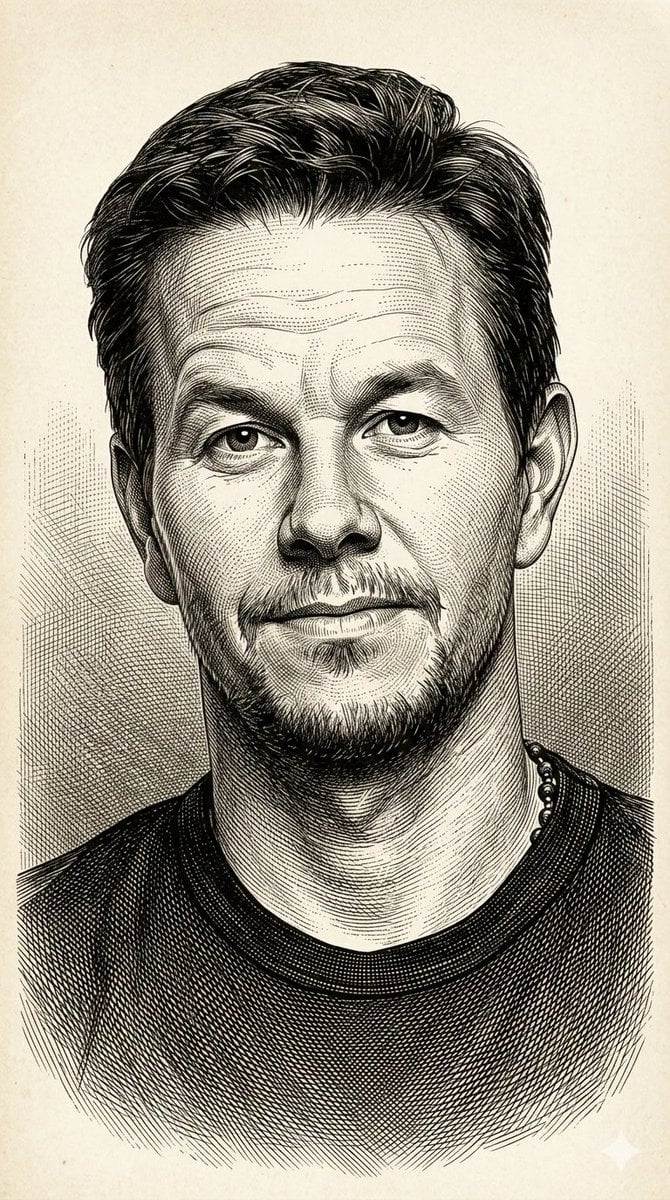
Image-to-Illustration Style Transfer Prompt (Gustave Doré)
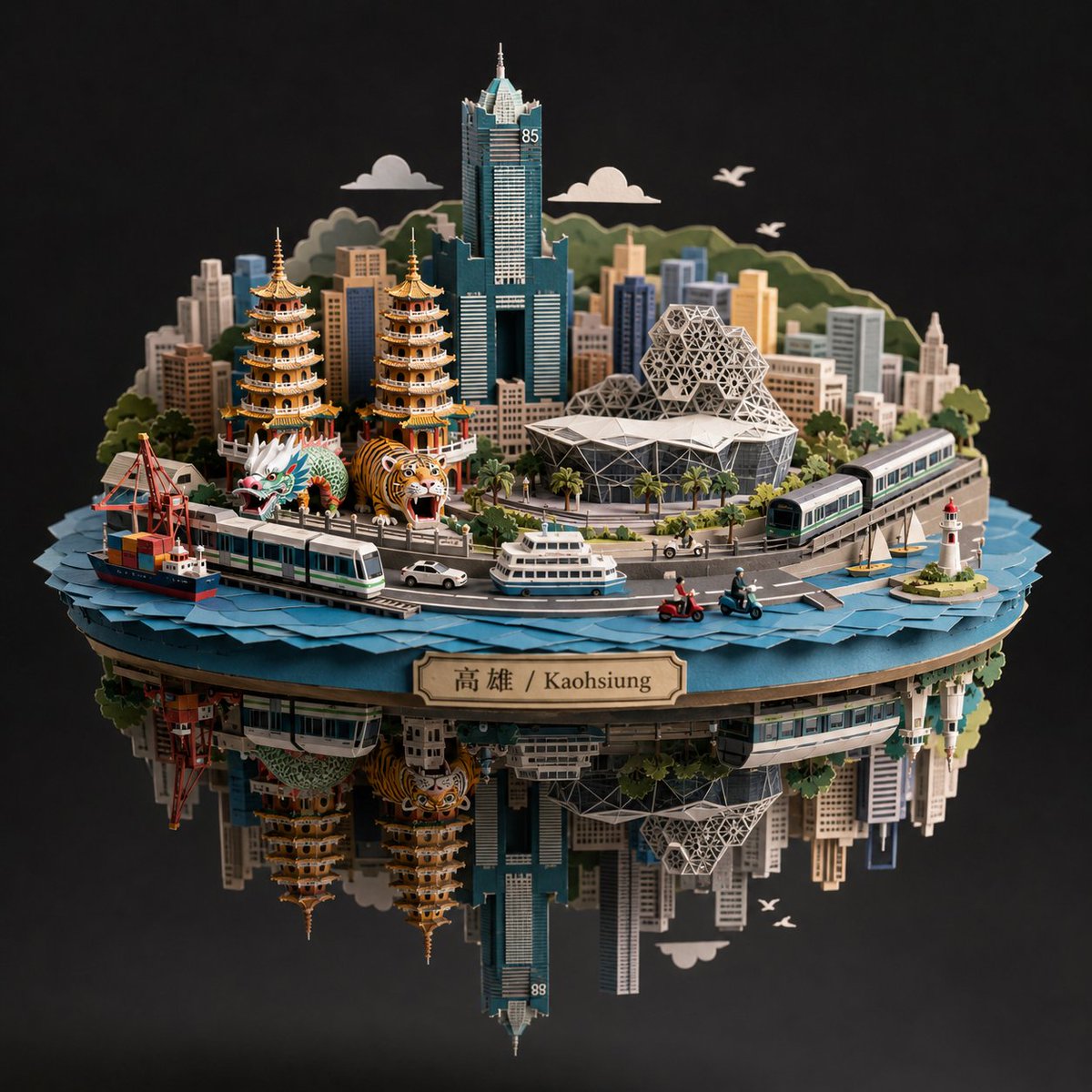
Kaohsiung Spherical Paper City Diorama
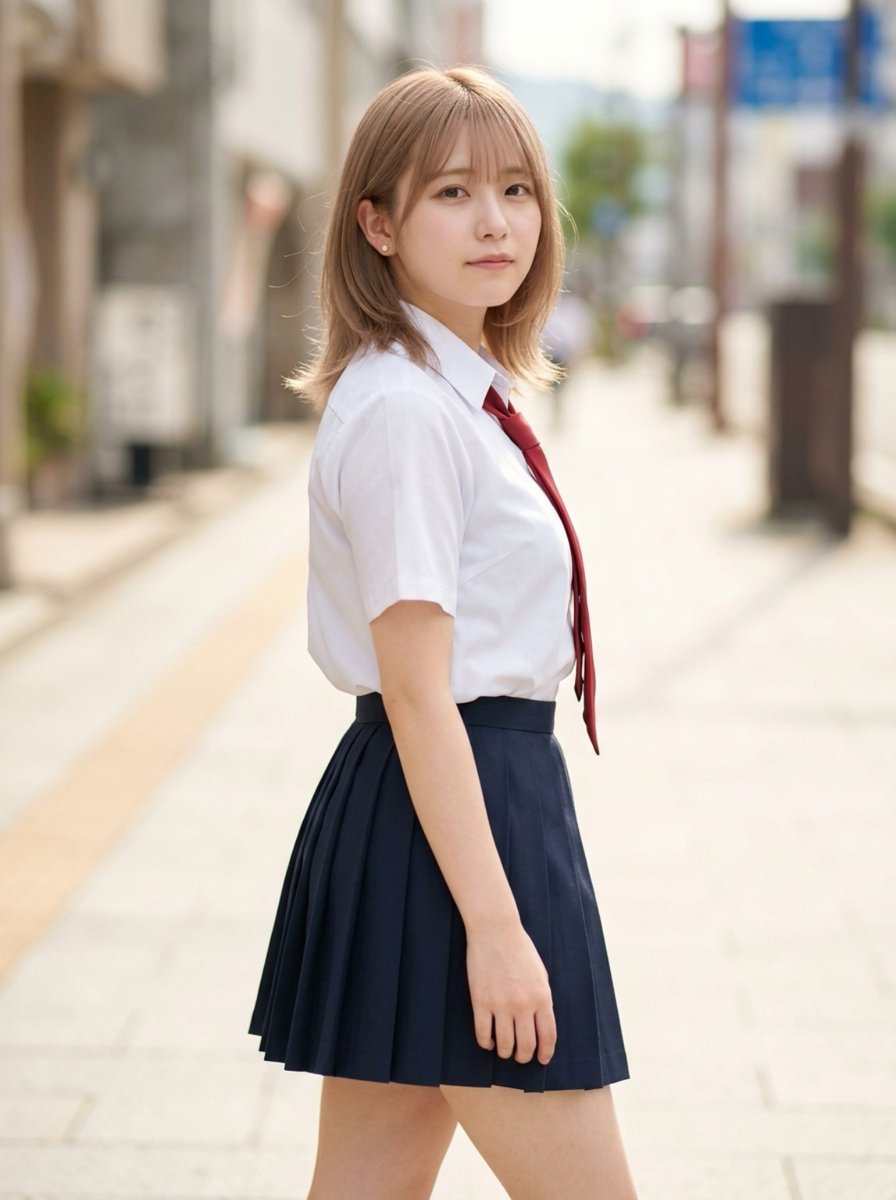
Censored School Uniform Street Portrait
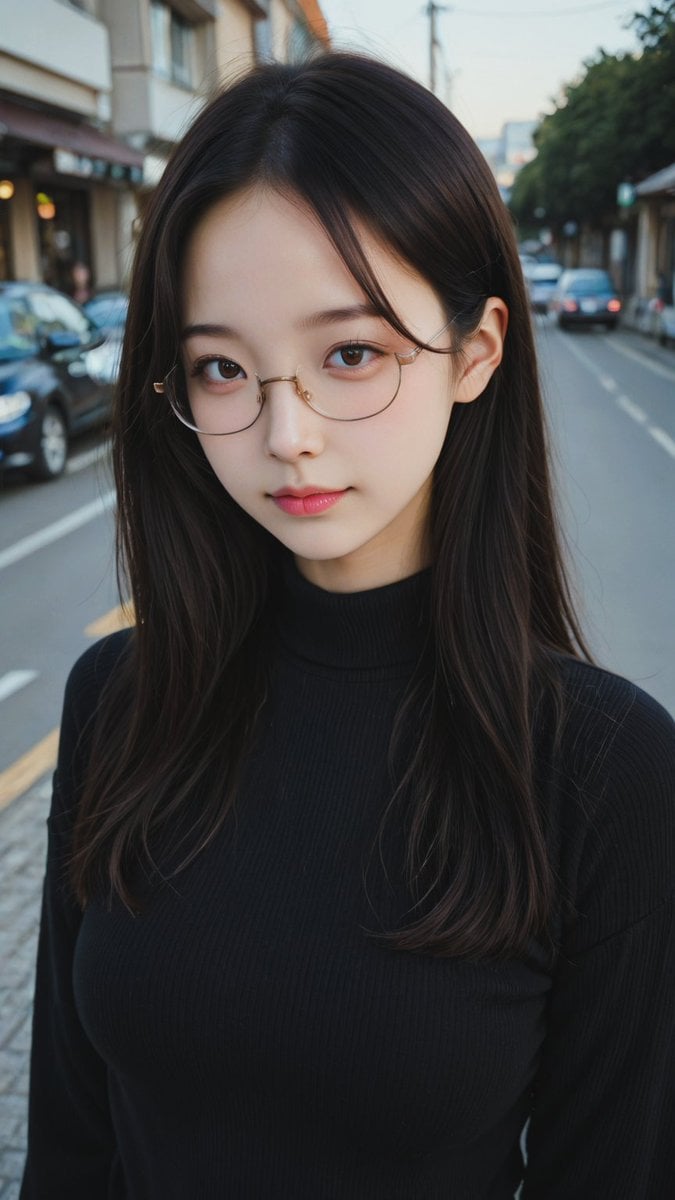
Moody Street Portrait at Dusk
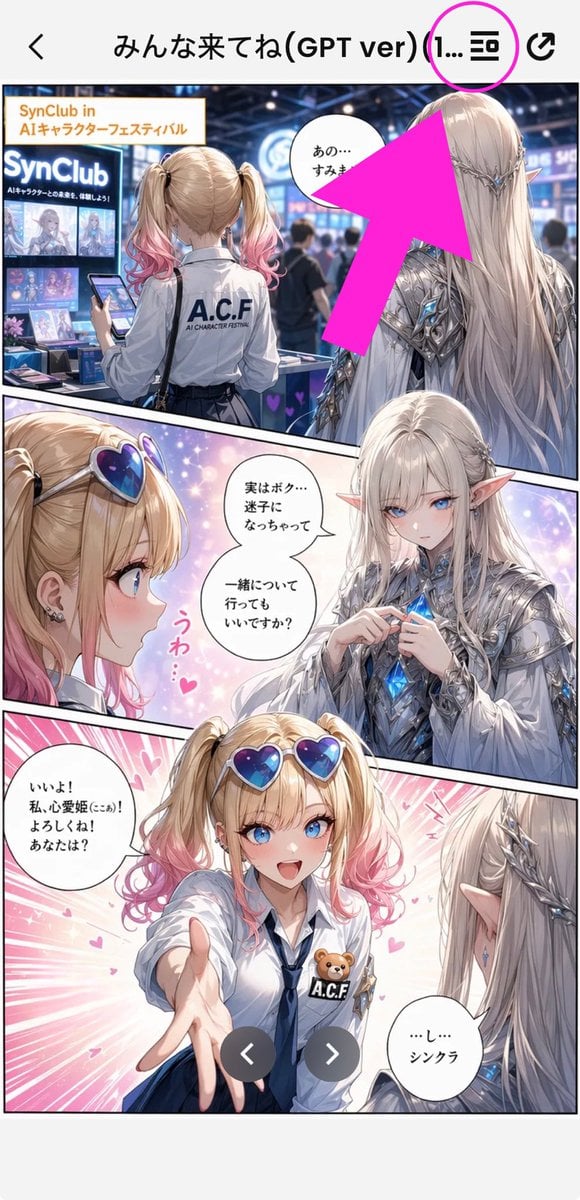
Annotated Manga App Screenshot
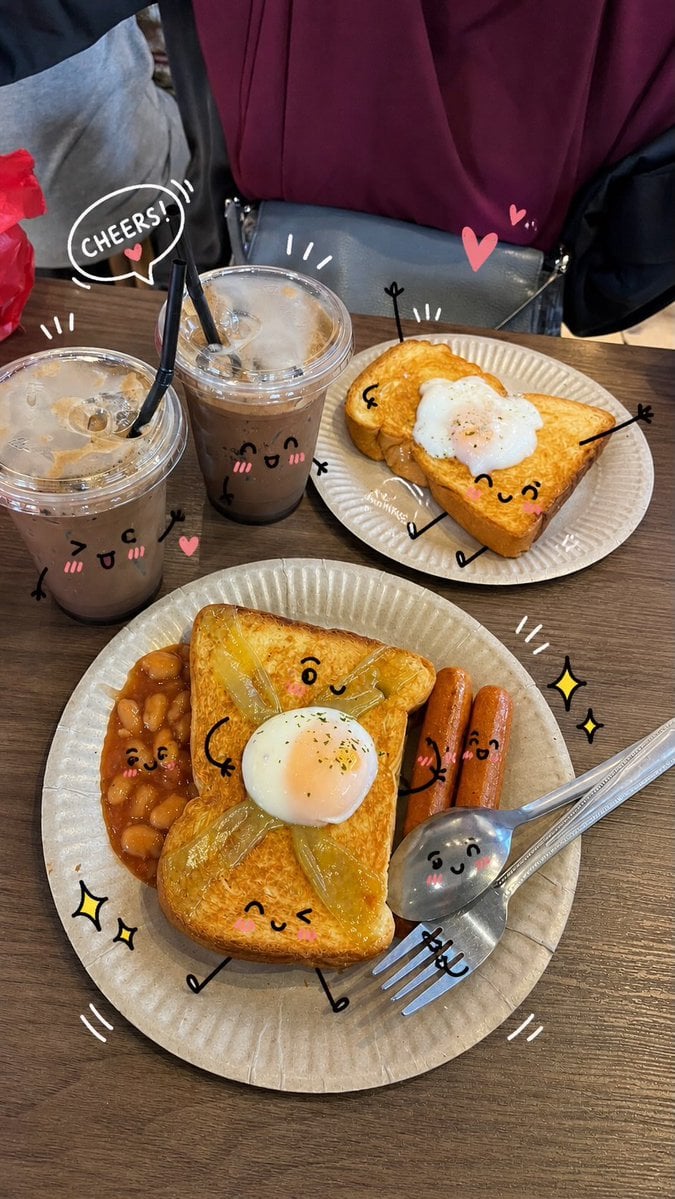
Kawaii Doodle Lifestyle Photography
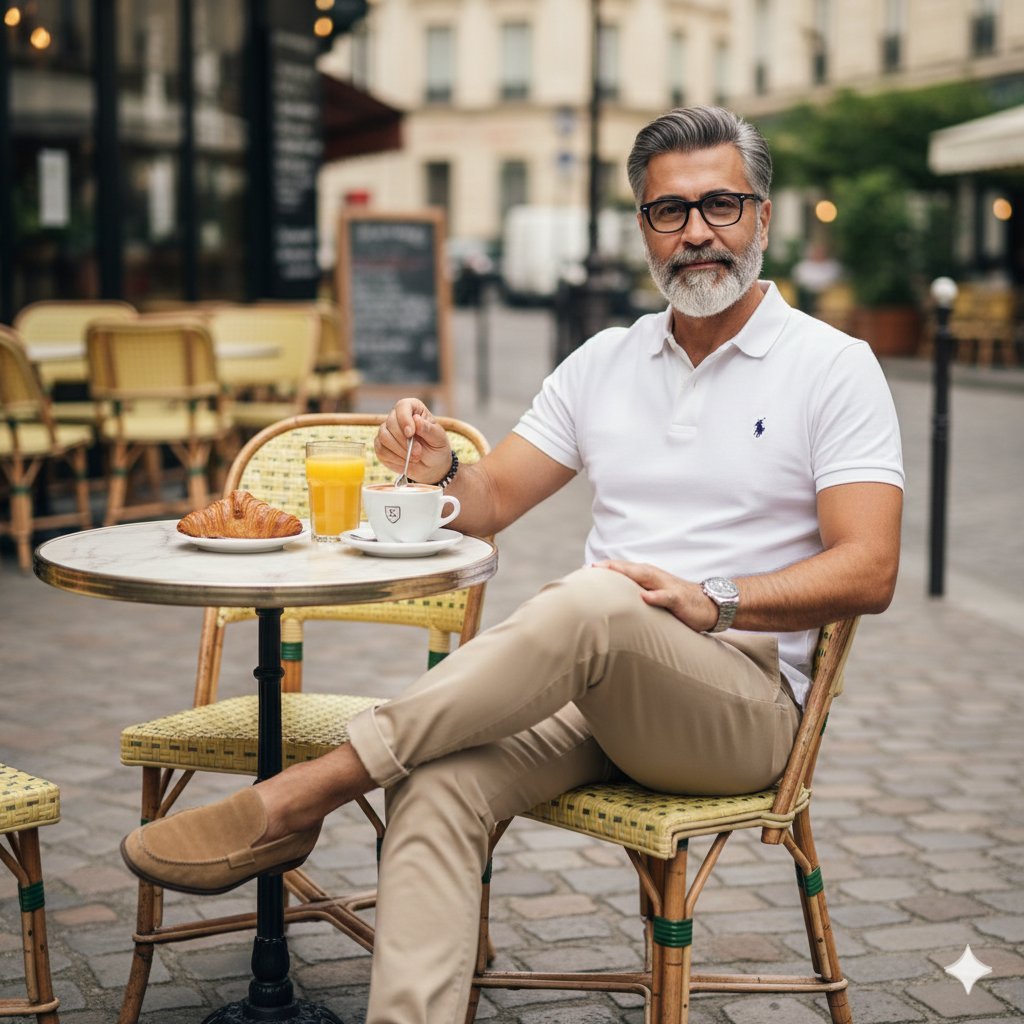
Photorealistic Parisian Cafe Scene
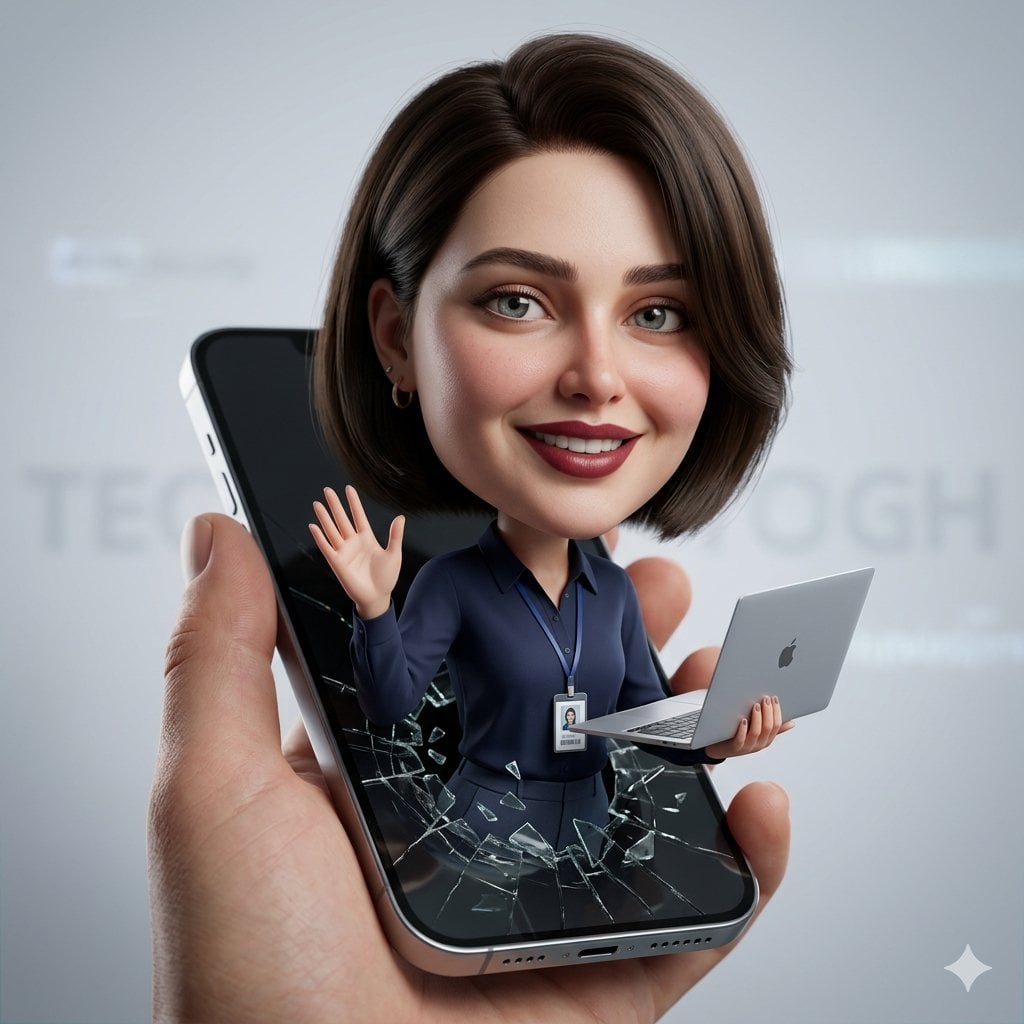
3D Caricature from Uploaded Face
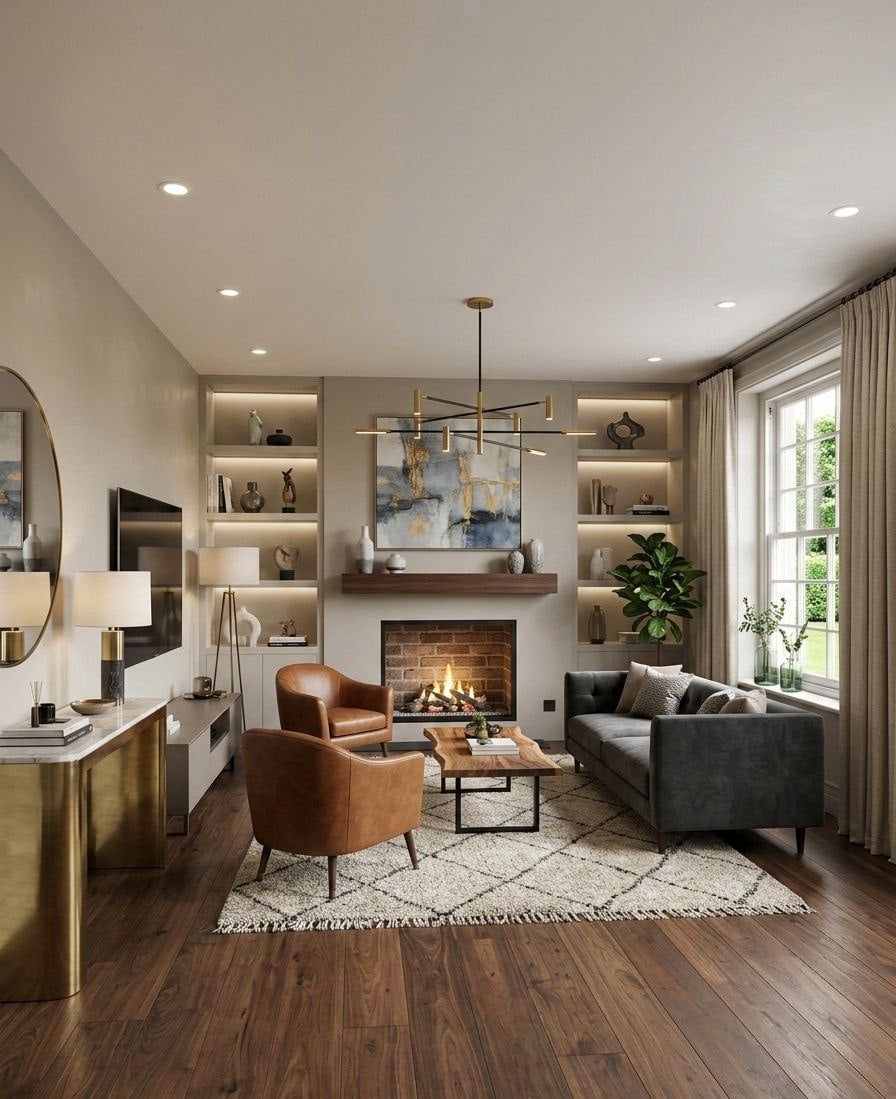
Ultra-realistic Cinematic Time-Lapse Renovation Scene
Browse template categories
Mobile AI Chat Screenshot with Transformer Poster questions
How do I use the Mobile AI Chat Screenshot with Transformer Poster template?
Add your photo if the template asks for one, edit the prompt if you like — the template's model and format are already selected — and press Generate. Your version opens in PicX Studio.
Can I customize the Mobile AI Chat Screenshot with Transformer Poster template?
Yes. You can change the subject, setting, lighting, mood, format, and available model controls before creating your image.
Is the Mobile AI Chat Screenshot with Transformer Poster template free?
Opening and editing this template is free. Generating uses credits, shown on the Generate button when you are signed in.
Which AI model should I use?
Start with GPT Image 2, which is the model associated with this template. You can compare another compatible model for a different finish.
Looking for something else? Browse all templates.

Your photo, any look
Thousands of ready templates for every top image and video model, from one credit balance.