How do I use the Gaunt Neo-Expressionist Lion template?
Choose the primary action to open PicX Studio with the available template settings. Review the model and format, personalize the creative direction, and generate when ready.
Generates a gritty Basquiat-inspired lion portrait suitable for expressive AI art, album covers, posters, or gallery-style wall art. Change the subject, setting, or lighting one variable at a time.
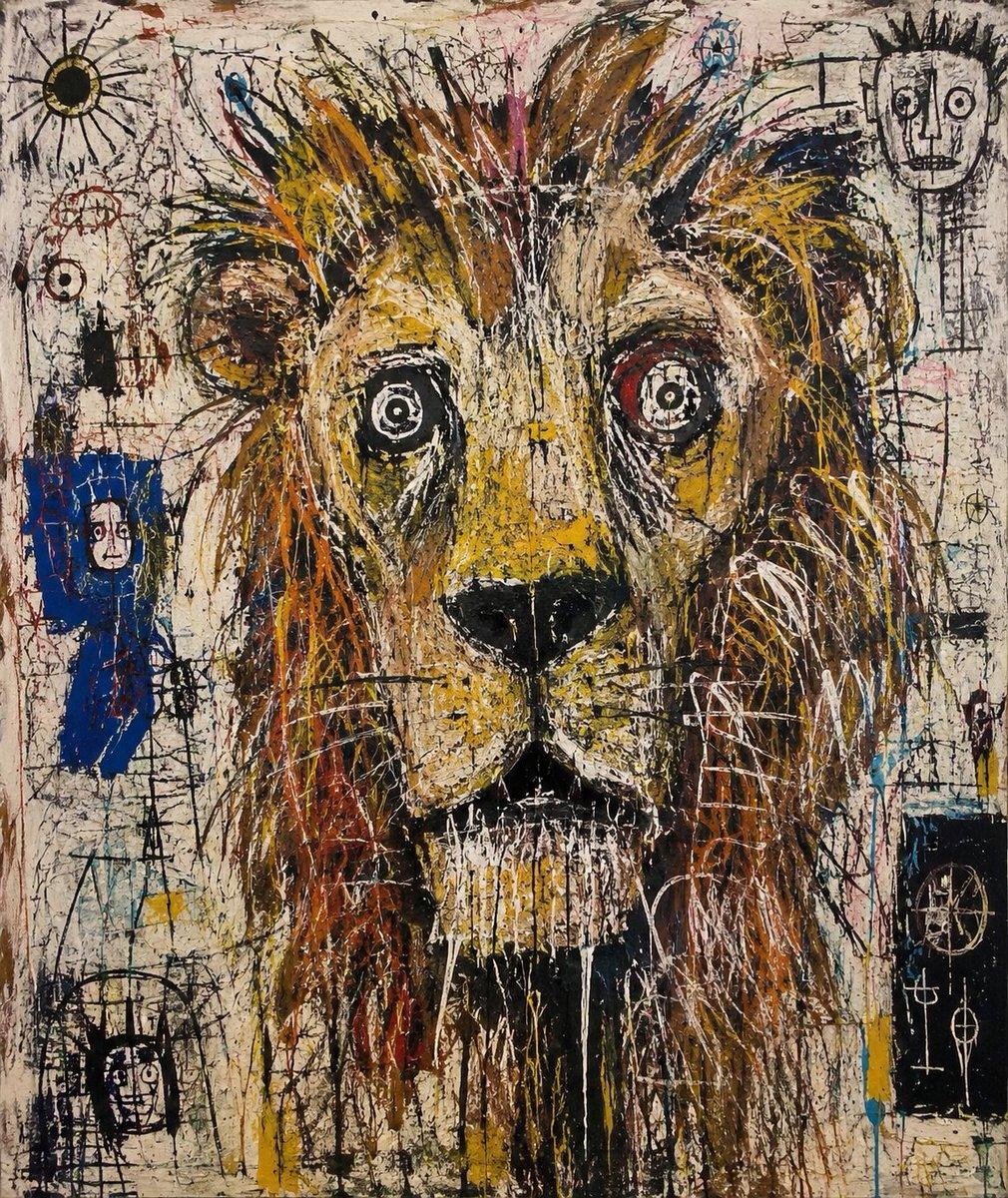
Create a raw neo-expressionist mixed-media painting on a dirty off-white canvas, dominated by a front-facing lion head with a gaunt, exhausted, slightly deranged expression. The lion has a huge scruffy mane in ochre, burnt orange, brown, black, and yellow, with spiky hair tufts radiating upward, asymmetrical wide circular eyes, a long yellow muzzle, a black nose, thin whiskers, and clenched vertical teeth like a grimace. Use dense scratched linework, splattered paint, dry-brush texture, scraped marks, drips, cracks, and chaotic graffiti-like scribbles across the whole surface, evoking Jean-Michel Basquiat-inspired outsider art. The background is a distressed cream wall filled with exactly 6 small doodle elements: a black-rayed sun in the upper left, a red circular face-like symbol on the left, a blue rectangular figure with a tiny face on the mid-left, a black boxed face near the lower left, a tall stick-figure face in the upper right, and a black rectangular panel with white occult-like symbols in the lower right. Keep the composition square, tightly cropped around the lion's face, with high contrast, messy hand-drawn energy, no clean digital polish, and a gritty gallery-painting texture. Customize the subject as {argument name="animal subject" default="lion"}, the emotional expression as {argument name="expression" default="gaunt and exhausted"}, the dominant palette as {argument name="color palette" default="ochre, burnt orange, brown, black, yellow, and dirty cream"}, the art style as {argument name="art style" default="neo-expressionist mixed-media graffiti painting"}, and the canvas format as {argument name="canvas format" default="square"}.
Choose the primary action to open PicX Studio with the available template settings. Review the model and format, personalize the creative direction, and generate when ready.
Yes. You can change the subject, setting, lighting, mood, format, and available model controls before creating your image.
This template is free to open and customize. Generation usage is shown in PicX Studio before you create.
Start with GPT Image 2, which is the model associated with this template. You can compare another compatible model for a different finish.
© 2026 PicX Studio. All rights reserved.

Follow a topic to a crawlable collection of related PicX Studio templates.
43,474 public templates available. Verified via the PicX Studio public templates API; refreshed hourly.









![Minimalist Flat Vector Travel Poster — Premium minimalist flat-vector travel poster for {argument name="city name" default="[CITY_NAME]"}, 3:4 vertical format.](https://cms-assets.youmind.com/media/1787917359711_3ug846_HQX205cbMAA6F6S-300x400.jpg)

























![Mid-Century Travel Poster — Create a vertical mid-century travel poster for {argument name="city name" default="[CITY NAME]"} fe…](https://cms-assets.youmind.com/media/1778490956036_lmrr6t_HH-VFGqaIAE0yEf.jpg)