
Ultra-Wide Anime Battle Storyboard
Generates a 12-panel monochrome cinematic storyboard sheet showing a brutal anime hand-to-hand fight sequence for action scene planning.
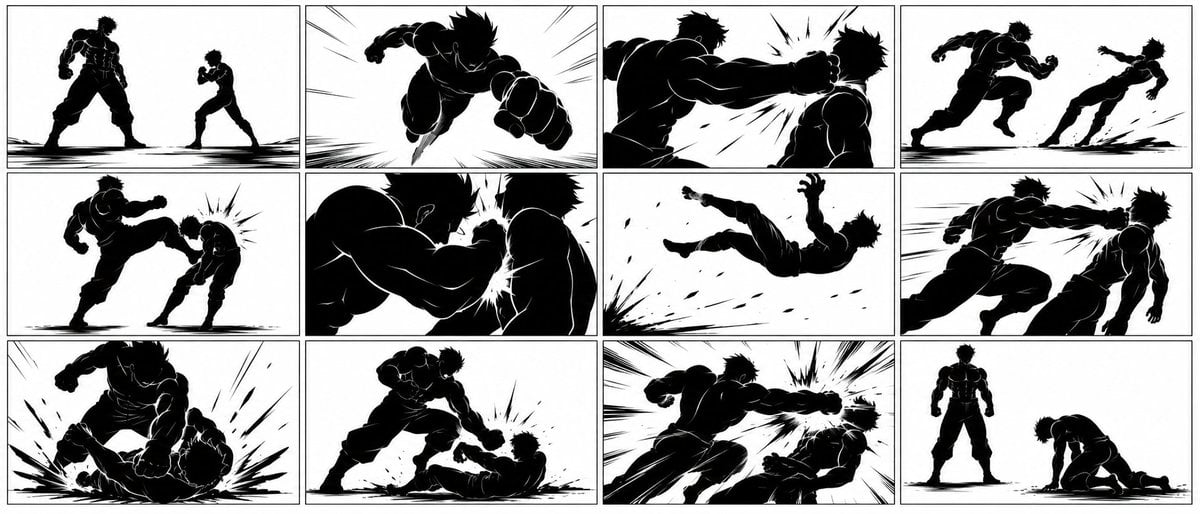
- Prompt included
- Model and format preset
- Free template
The prompt behind this image
Copy the exact prompt behind Ultra-Wide Anime Battle Storyboard, or open it in the studio and make it yours.
Goal: Create a single ultra-wide cinematic anime storyboard sheet for a high-impact hand-to-hand battle scene, designed as black-and-white visual reference art. Canvas: 21:9 horizontal canvas, clean white background, thin black outer border, divided into exactly 12 rectangular storyboard panels arranged in a 3-row by 4-column grid with narrow white gutters and thin black panel borders. Visual style: High-contrast monochrome ink art, characters mostly rendered as solid black silhouettes with minimal white rim highlights, sharp manga/anime speed lines, impact bursts, ink splatter, ground scrape marks, and exaggerated cinematic camera angles. No grayscale shading, no color, no speech bubbles, no captions, no logos, no watermark. Characters: Two fighters only. Fighter A is {argument name="dominant fighter" default="a tall, extremely muscular male silhouette with spiky hair, sleeveless combat outfit, gloves, loose pants, and heavy boots"}. Fighter B is {argument name="opponent fighter" default="a smaller athletic male silhouette with spiky hair, fitted combat clothes, gloves, and boots"}. Keep both characters as dark silhouettes throughout, with strong readable poses. Panel layout and action beats: Include exactly 12 panels, left to right, top to bottom: 1. Wide establishing standoff: the large fighter stands powerfully on the left, the smaller fighter squares up on the right, both grounded on rough black brush shadows. 2. Dynamic low-angle charge: the large fighter lunges forward toward camera, fist cocked, strong radial speed lines behind him. 3. Close-up impact punch: the large fighter’s fist smashes into the smaller fighter’s face or upper body, with a bright white impact starburst. 4. Side view knockback: the smaller fighter is thrown backward to the right while the large fighter follows through in a running strike pose. 5. Mid-shot kick impact: the large fighter drives a heavy kick or knee into the smaller fighter, who bends forward from the blow, with burst lines at the torso. 6. Tight close combat: the large fighter grabs or body-checks the opponent at close range, faces close, strong white impact flash between their bodies. 7. Airborne launch: the smaller fighter flies diagonally across an otherwise open white panel, debris and ground slash marks trailing from the launch point. 8. Running punch chase: the large fighter dashes in from the left and lands another straight punch on the opponent at the right edge, with horizontal speed streaks. 9. Ground slam: the large fighter crouches over the opponent and drives him into the ground, huge black splash-like impact lines radiating upward. 10. Downed opponent strike: the smaller fighter lies on the ground while the large fighter stands over him and punches downward, with a compact impact burst. 11. Final power punch: dramatic perspective shot from behind the large fighter as he throws a massive punch into the opponent, surrounded by dense speed lines and impact shards. 12. Aftermath: the large fighter stands tall and victorious on the left; the smaller fighter kneels or collapses on the right with one hand on the ground, defeated. Constraints: Use {argument name="aspect ratio" default="21:9"}; keep exactly 12 panels and exactly two fighters; make the action read clearly as one continuous brutal anime battle sequence; preserve the clean storyboard-sheet composition; avoid extra characters, weapons, text, color, gore, or background scenery beyond speed lines and ground marks.
How to use Ultra-Wide Anime Battle Storyboard in 3 steps
- 1Upload ImagePNG, JPG or paste
Add your photo
Upload the photo the template builds on. The prompt, model and format are already set.
- 2…a portrait of your subject in softgolden-hour light, 85mm…
Personalize
Edit the subject and creative details for your destination.
- 3Generate
Generate
Press Generate — your image is created in PicX Studio, so you can compare it with the original and refine one variable at a time.
More like this
Templates with the same subject, style or setup. Open one to see its prompt.
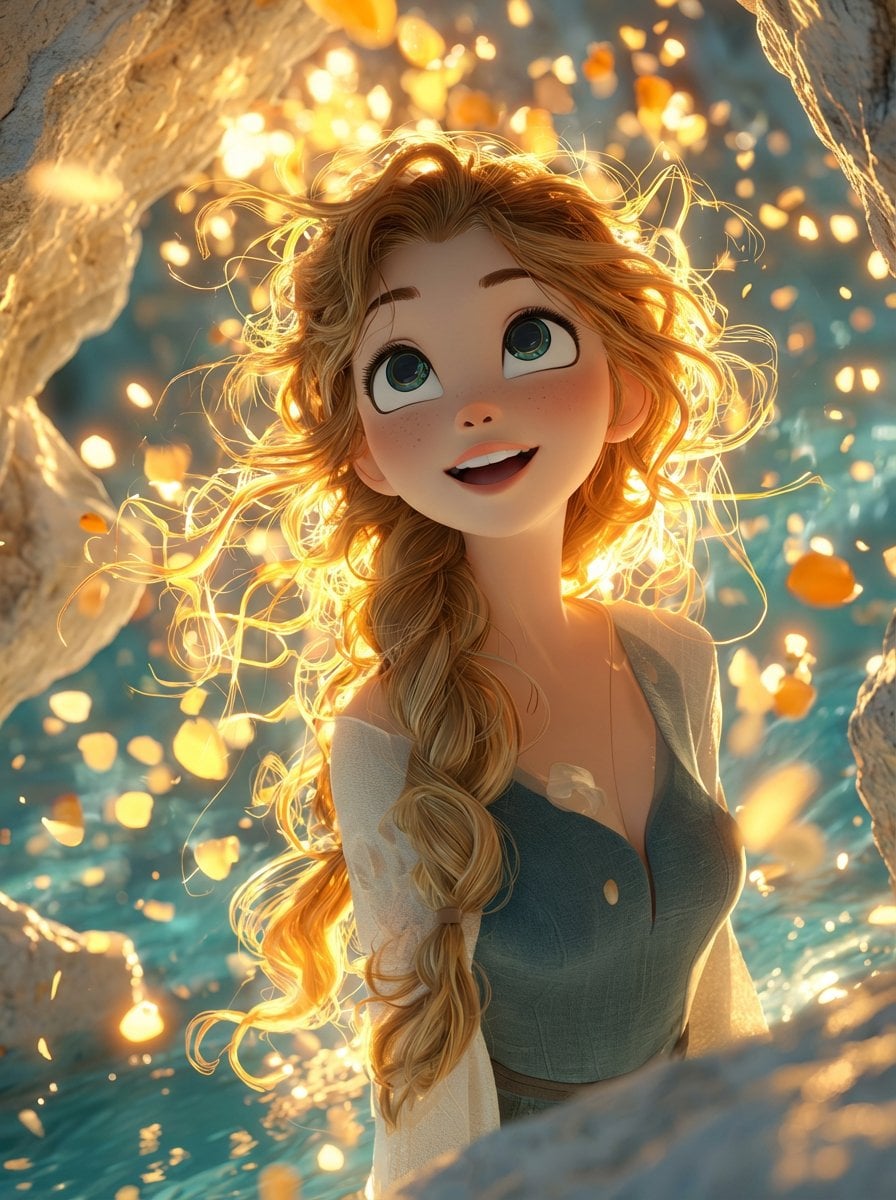
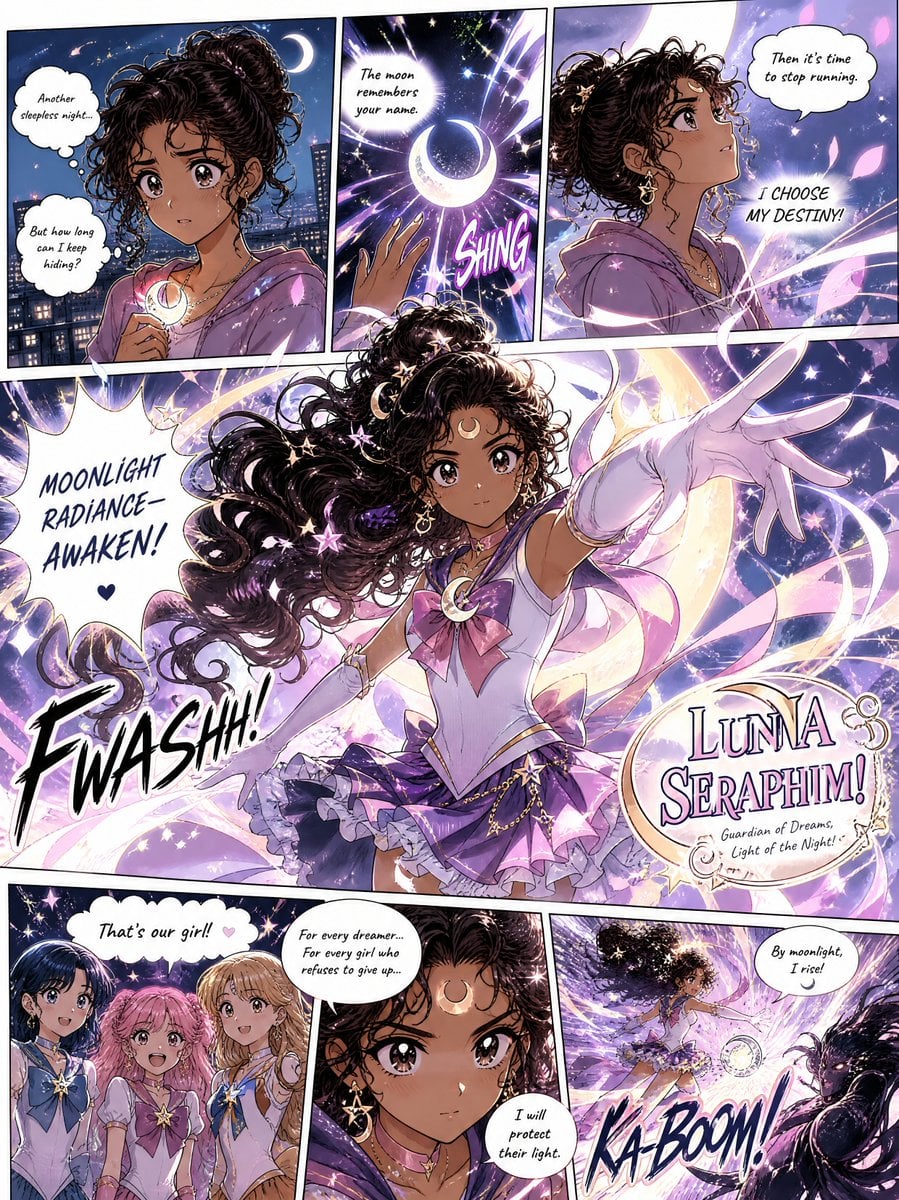
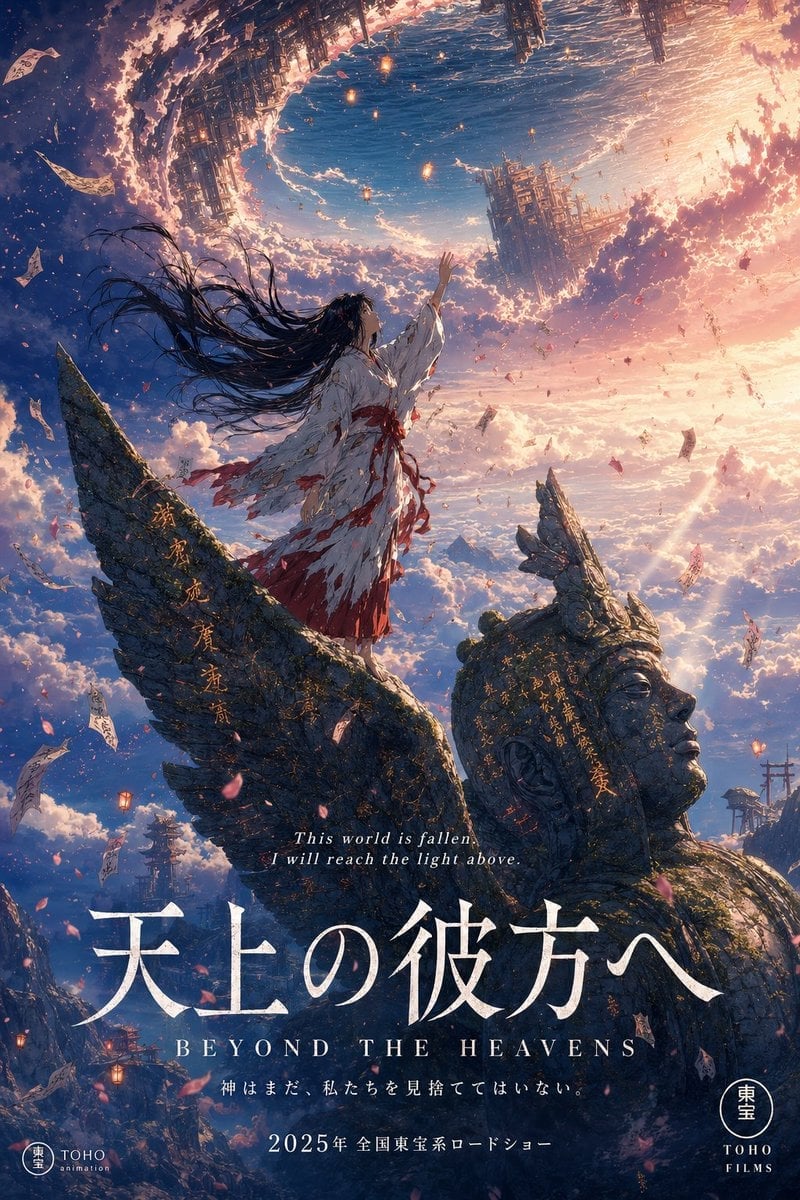
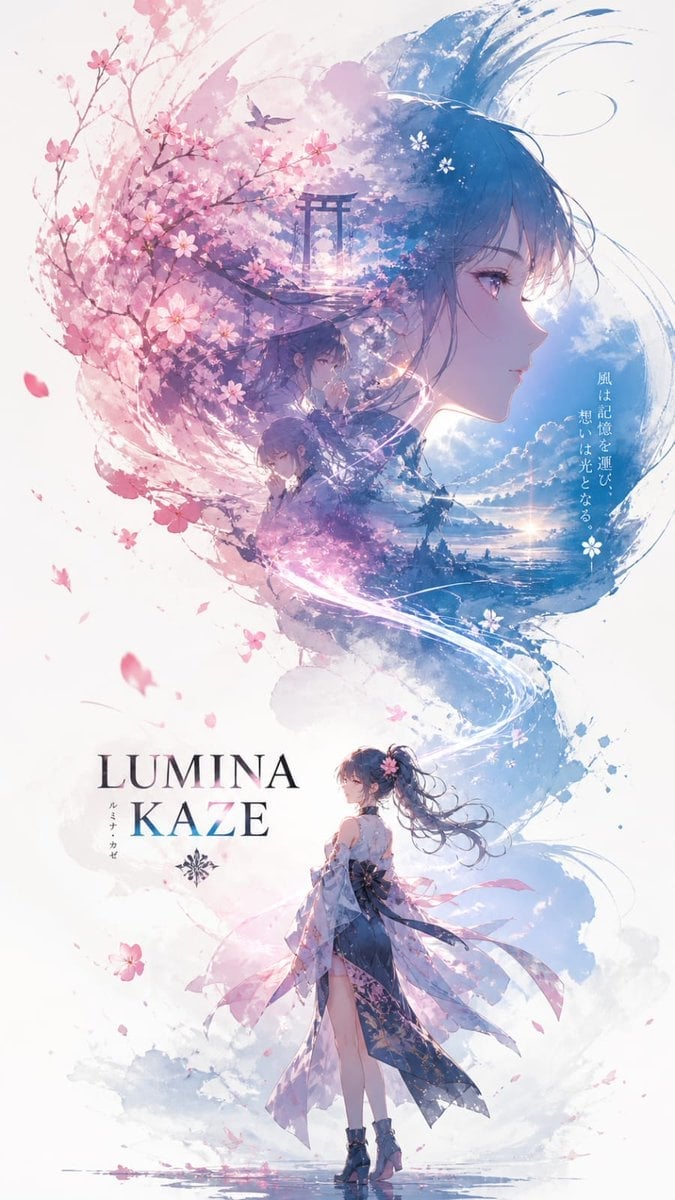
Make it yours
Ultra-Wide Anime Battle Storyboard works as-is. These are the safest ways to change it without losing the look.
Change one field
Copy a single group, rewrite it, and generate again so you can see what that field is doing.
Keep the frame, change the subject
Hold the composition and light of Ultra-Wide Anime Battle Storyboard, then swap wardrobe, props or the person for a new take.
| If the result… | Why | Fix |
|---|---|---|
| The result drifts from the preview | Too many fields changed at once. | Reuse Ultra-Wide Anime Battle Storyboard as-is first, then change one group — subject, light, or setting. |
| The model over-stylizes the scene | The prose prompt leaves finish and camera underspecified. | Add one camera or lighting sentence and stay on GPT Image 2. |
More GPT Image 2 templates
Other prompts made for GPT Image 2.

Six VTuber Japanese Logo Sheet

Realistic Portrait of Woman and Deer

The Vista Modular Condo Poster

AI Model Routing Comparison Infographic

2.5D Anime Art Board

Isometric Productivity Desk Scene

New York Double Exposure Poster

Four-Panel AI Landscape Comparison

Japanese Tatami Lifestyle Magazine Cover

NESCAFÉ Coffee Map Poster
More image prompts
Fresh picks from across the catalog.
Indoor Group Flash Photo Prompt for Nano Banana
Social Media Glass Break Mockup
1990s Time Traveler Magazine Cover
Winter Forest Portrait with Backlight
Futuristic Holographic Burj Khalifa Blueprint
Retro Neon Night Phone Portrait
High-Fashion 'Old Money' Winter Scene
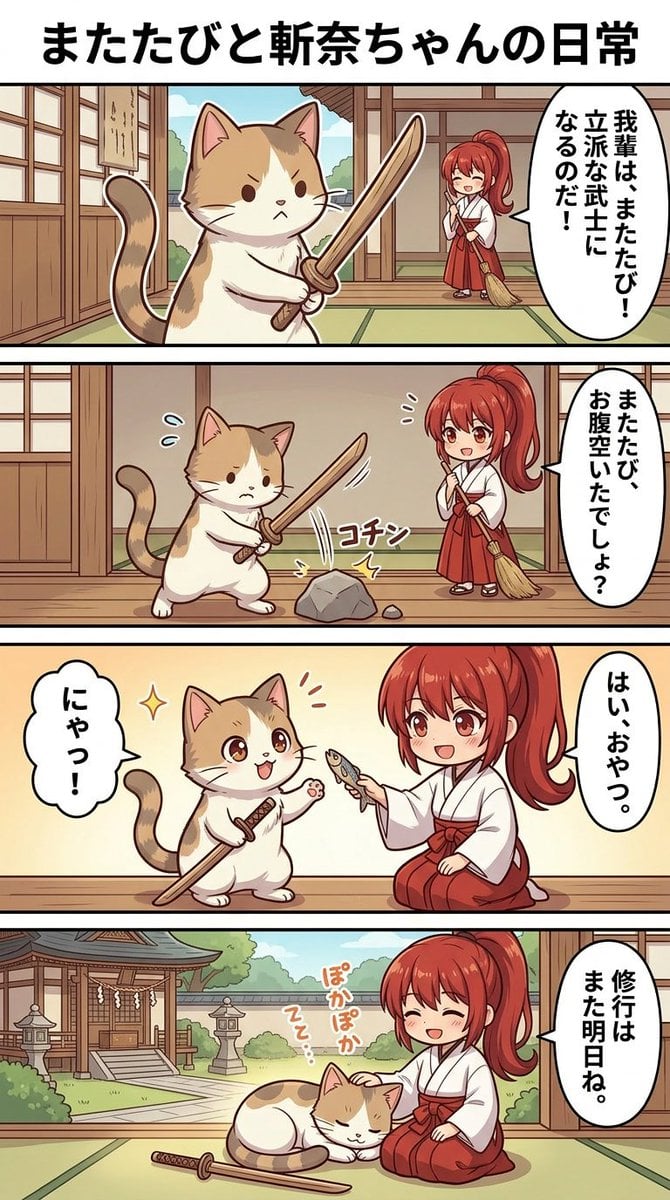
Panel Manga Generation Prompt
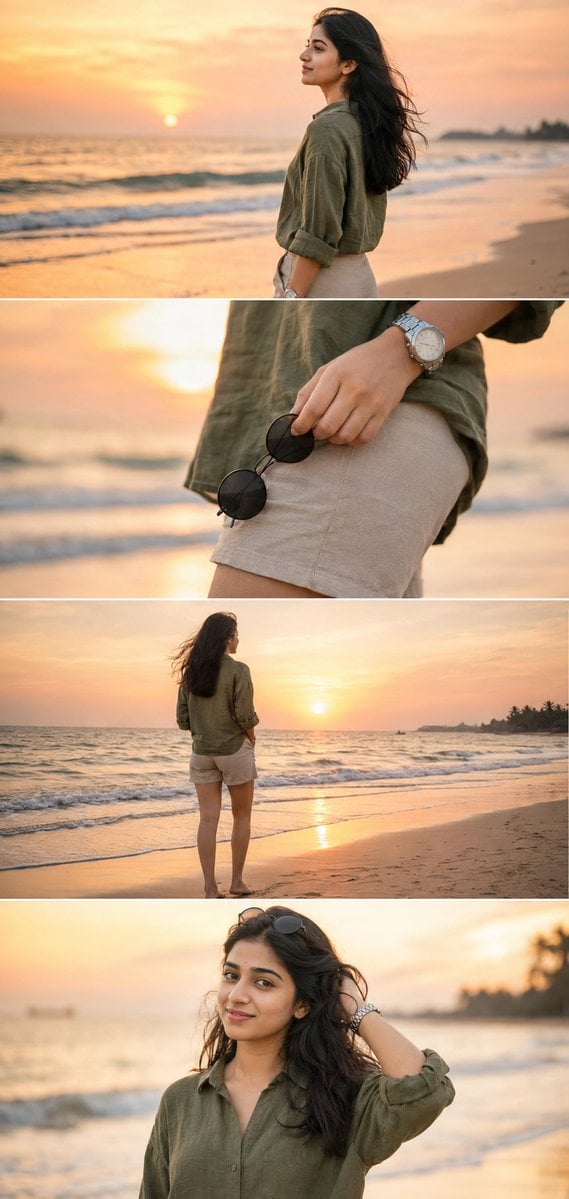
Premium Instagram Beach Photoshoot Collage
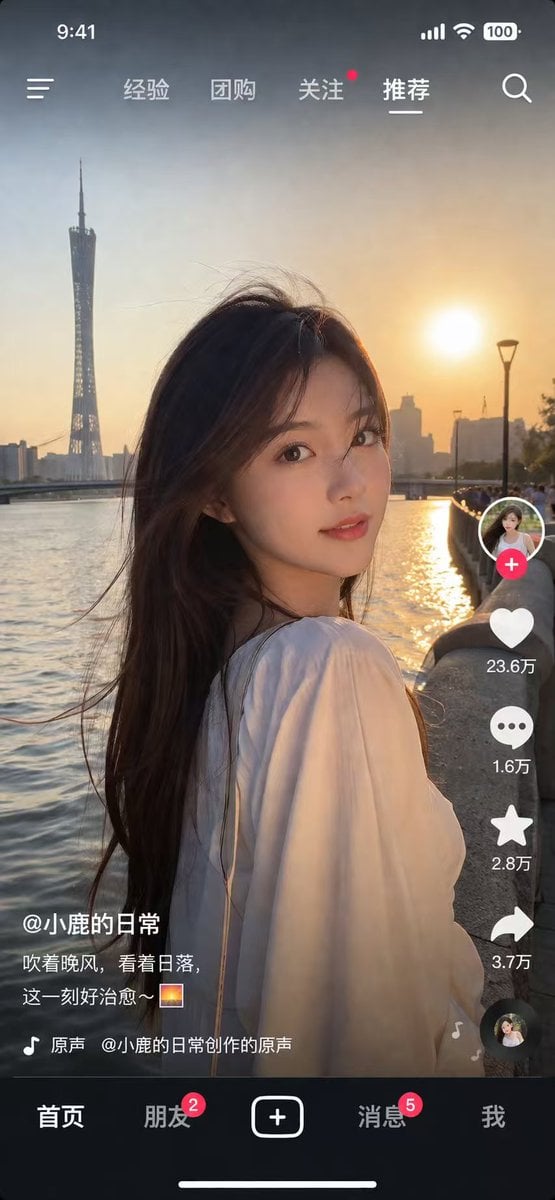
Social Media App Interface Mockup
Browse template categories
Ultra-Wide Anime Battle Storyboard questions
How do I use the Ultra-Wide Anime Battle Storyboard template?
Add your photo if the template asks for one, edit the prompt if you like — the template's model and format are already selected — and press Generate. Your version opens in PicX Studio.
Can I customize the Ultra-Wide Anime Battle Storyboard template?
Yes. You can change the subject, setting, lighting, mood, format, and available model controls before creating your image.
Is the Ultra-Wide Anime Battle Storyboard template free?
Opening and editing this template is free. Generating uses credits, shown on the Generate button when you are signed in.
Which AI model should I use?
Start with GPT Image 2, which is the model associated with this template. You can compare another compatible model for a different finish.
Looking for something else? Browse all templates.

Your photo, any look
Thousands of ready templates for every top image and video model, from one credit balance.