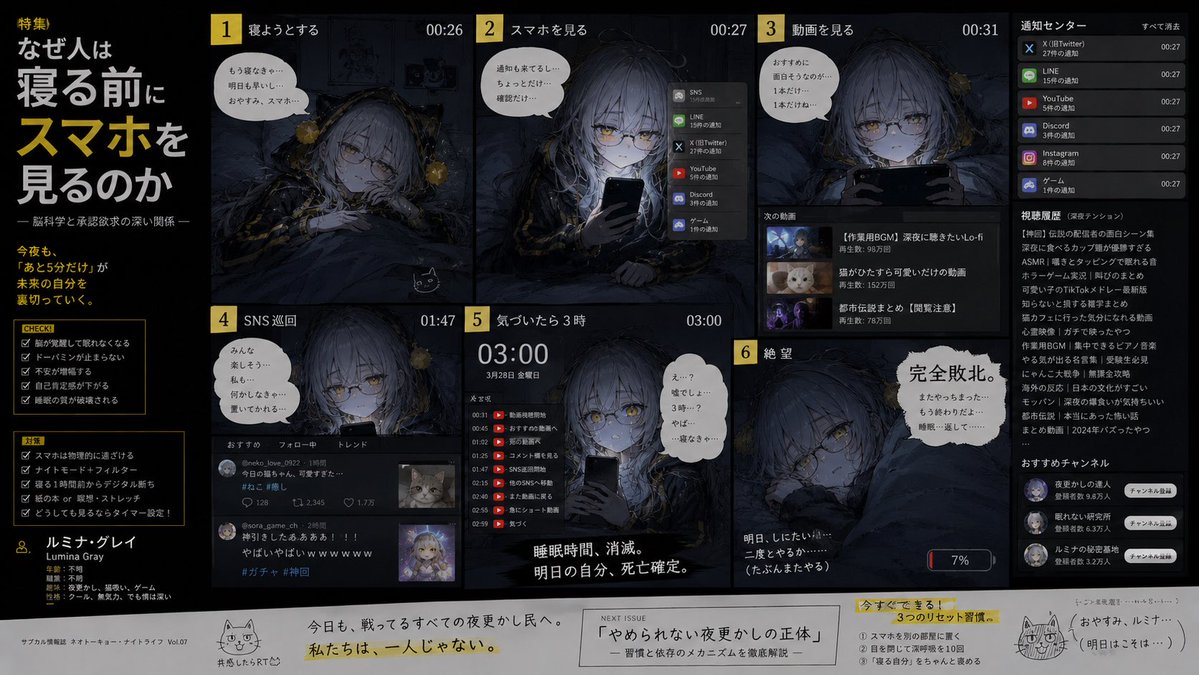
Bedtime Smartphone Anime Infographic
{"type":"dark anime magazine-style infographic comic spread","format":"wide 16:9 single-page layout with black background, muted navy-gray bedroom panels, yellow accent numbering, white Japanese typography, thin panel borders, editorial feature design","headline":"{argument name=\"headline text\" default=\"なぜ人は寝る前にスマホを見るのか\"}","subheadline":"脳科学と承認欲求の深い関係","theme_quote":"{argument name=\"quote\" default=\"今夜も、『あと5分だけ』が未来の自分を裏切っていく。\"}","character":{"name":"{argument name=\"character name\" default=\"ルミナ・グレイ\"}","role":"sleep-deprived original anime girl used as the case study subject","appearance":"pale young woman with long messy silver-gray hair, sleepy golden eyes, round glasses, black cat-ear-like hair accessories with yellow flower ornaments, black-and-gold gothic pajama or hoodie details, wrapped in dark bedding, tired expression throughout","mood":"serious but comedic defeat, late-night doomscrolling, exhausted and regretful"},"layout":{"left_sidebar":{"position":"far left vertical column","sections_count":4,"sections":[{"title":"特集","content":"large stacked Japanese headline with oversized yellow word スマホ, editorial subtitle, and short yellow quote"},{"title":"CHECK!","count":5,"items":["脳が覚醒して眠れなくなる","ドーパミンが止まらない","不安が増幅する","自己肯定感が下がる","睡眠の質が破壊される"]},{"title":"対策","count":5,"items":["スマホは物理的に遠ざける","ナイトモード+フィルター","寝る1時間前からデジタル断ち","紙の本 or 瞑想・ストレッチ","どうしても見るならタイマー設定!"]},{"title":"profile","content":"small user icon and character profile for ルミナ・グレイ with traits such as age unknown, occupation unknown, interests being sleep, games, and night, and weaknesses including warm futons and smartphones"}]},"main_comic_grid":{"position":"center and right","panel_count":6,"panels":[{"number":1,"title":"寝ようとする","time":"00:26","position":"top left of main grid","scene":"the girl lies in bed under a dark blanket in a dim room with framed pictures on the wall, trying to sleep while still thinking about her phone","speech_bubble":"もう寝なきゃ……明日も早いし…おやすみ、スマホ……","details":"tiny black cat doodle near lower edge"},{"number":2,"title":"スマホを見る","time":"00:27","position":"top middle","scene":"she sits up holding a black smartphone, face lit by the screen, sleepy eyes behind glasses","speech_bubble":"通知も来てるし…ちょっとだけ確認だけ…","ui_components_count":1,"ui_components":["vertical SNS notification stack with 6 app rows: SNS, LINE, X (Twitter), YouTube, Discord, ゲーム"]},{"number":3,"title":"動画を見る","time":"00:31","position":"top right","scene":"she holds the phone horizontally like watching videos, eyes focused and more awake","speech_bubble":"おまえ達に面白そうなのが…1本だけ…1本だけね…","ui_components_count":3,"ui_components":["next video recommendation area with 3 thumbnail rows","right notification center titled 通知センター with 6 notification rows from X, LINE, YouTube, Discord, Instagram, ゲーム","right viewing history and recommended channels column with dense Japanese text and small round channel icons"]},{"number":4,"title":"SNS巡回","time":"01:47","position":"bottom left of main grid","scene":"girl peeks from bed while scrolling social media, with a dark social feed overlay","speech_bubble":"みんな楽しそう…私も…何かしたぁ…置いてかれる…","ui_components_count":1,"ui_components":["SNS feed with 2 visible posts, tabs おすすめ / フォロー中 / トレンド, like and comment counts, one cat thumbnail and one anime avatar thumbnail"]},{"number":5,"title":"気づいたら3時","time":"03:00","position":"bottom middle","scene":"large digital time 03:00 dominates the panel, girl stares at the phone with a shocked exhausted face","speech_bubble":"え…?嘘でしょ…3時…?やば…寝なきゃ……","ui_components_count":1,"ui_components":["night timeline log with 9 entries from 00:31 to 02:59 showing escalating apps and actions"],"caption":"睡眠時間、消滅。明日の自分、死亡確定。"},{"number":6,"title":"絶望","time":"","position":"bottom right of main grid","scene":"the girl lies collapsed in bed with one golden eye open, blanket pulled high, phone battery warning visible","speech_bubble":"完全敗北。まさかっちまった…もう終わりだよ…睡眠…返して……","details":"small battery indicator at 7%, tiny caption 明日、したいこと…二度とやるか……(たぶんまたやる)"}]},"bottom_strip":{"position":"full width footer strip on off-white paper background","sections_count":5,"sections":[{"title":"small cat mascot note","content":"hand-drawn cat face with short Japanese aside"},{"title":"motivational line","content":"今日も、戦ってるすべての夜更かし民へ。私たちは、一人じゃない。 with the second sentence highlighted yellow"},{"title":"NEXT ISSUE","content":"『やめられない夜更かしの正体』—習慣と依存のメカニズムを徹底解説—"},{"title":"今すぐできる!3つのリセット習慣","count":3,"items":["スマホを別の部屋に置く","目を閉じて深呼吸を10回","『寝る自分』をちゃんと褒める"]},{"title":"ending doodle","content":"another hand-drawn cat with sleepy handwritten dialogue saying good night and implying tomorrow will be fine"}]},"visual_style":"highly detailed anime illustration mixed with magazine infographic design, cinematic low-light bedroom atmosphere, desaturated blues and blacks, warm yellow highlights, realistic phone glow, halftone/grain texture, crisp editorial Japanese text blocks, melancholy humor, dense but readable layout","composition_instructions":"make the page look like a serious investigative feature explaining an ordinary problem in multiple comic panels; use exactly 6 numbered story panels, exactly 4 left-sidebar sections, exactly 5 footer sections, and include the repeated late-night smartphone addiction progression from 00:26 to 03:00"}














![Minimalist Flat Vector Travel Poster — Premium minimalist flat-vector travel poster for {argument name="city name" default="[CITY_NAME]"}, 3:4 vertical format.](https://cms-assets.youmind.com/media/1787917359711_3ug846_HQX205cbMAA6F6S-300x400.jpg)