Scandinavian Beauty in Abandoned Onsen
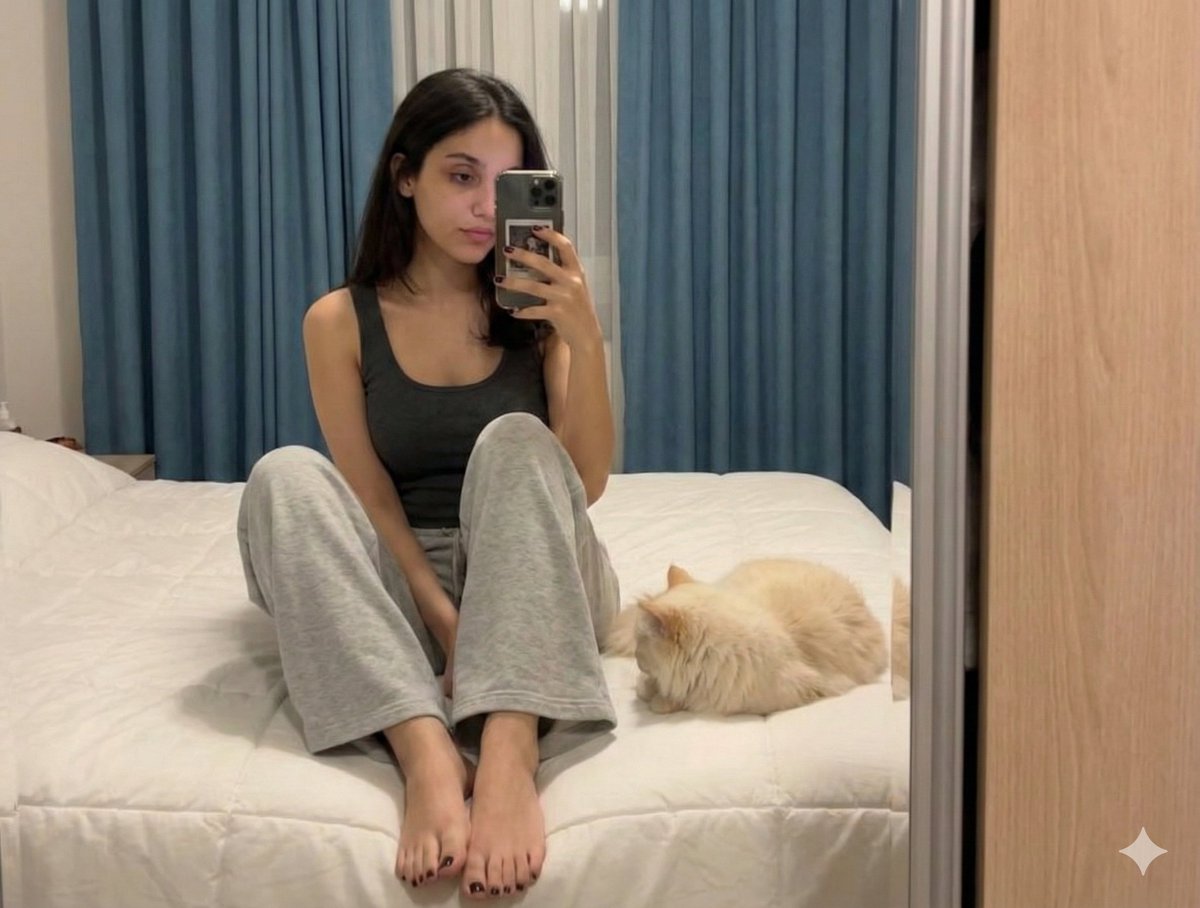
{ "subject": { "description": "A stunning Scandinavian beauty with a voluptuous figure, sitting in an industrial ruin, wearing a delicate white string bikini contrasted with a heavy winter parka draped off her shoulders.", "mirror_rules": "N/A", "age": "early 20s", "expression": { "eyes": { "look": "pensive and slightly melancholic", "energy": "quiet thoughtfulness", "direction": "looking to the side, towards the camera" }, "mouth": { "position": "lips slightly parted, relaxed", "slight smile", "energy": "soft and relaxed" }, "overall": "serene, contrasting deeply with the harsh environment" }, "face": { "preserve_original": true, "makeup": "exquisite Japanese editorial makeup, soft peach blush, delicate eyeliner, glossy pink lips, flawless foundation" }, "hair": { "color": "Golden brown", "style": "tied back into a loose ponytail with wispy bangs framing the face", "effect": "held back by a white mesh headband, slightly messy from the environment" }, "body": { "frame": "hourglass, curvy, prominent cleavage, slim toned waist", "chest": "large and full, beautifully highlighted by the bikini", "waist": "slender and smooth", "legs": "long, gracefully bent", "skin": { "visible_areas": "torso, arms, chest, thighs", "tone": "fair, translucent cold-white tone", "texture": "feels powdery and velvety soft, a stark contrast to the cold, stone surrounding her", "lighting_effect": "sliced by harsh, distinct geometric shadows cast by an unseen source" } }, "pose": { "position": "sitting on the tiled ground, leaning back slightly", "base": "weight supported by her hands resting beside her thighs, right knee raised", "overall": "a static, vulnerable posture that feels accidentally captured" }, "clothing": { "top": { "type": "string bikini top", "color": "pure white", "details": "tiny triangle cups, thin tie straps", "effect": "struggling to contain her curves" }, "bottom": { "type": "string bikini bottom", "color": "pure white", "details": "very thin side straps riding high on the hips" }, "outerwear": { "type": "heavy winter parka", "color": "olive khaki green", "details": "thick faux fur hood, unzipped, intentionally falling off her shoulders to expose her upper body" } } }, "accessories": { "headwear": "wide white mesh headband", "jewelry": "gold hoop earrings, a thick black leather choker with a small golden rabbit", "prop": "clear plastic high heels carelessly removed and resting near her bare feet" }, "photography": { "camera_style": "professional DSLR, high-fashion editorial gravure photography", "angle": "high angle, shooting downwards to emphasize her form and the ground", "shot_type": "full body to three-quarter shot", "aspect_ratio": "2:3", "texture": "hyper-realistic, sharp focus on the skin and fabric, and background", "lighting": "har" } }









![Minimalist Flat Vector Travel Poster — Premium minimalist flat-vector travel poster for {argument name="city name" default="[CITY_NAME]"}, 3:4 vertical format.](https://cms-assets.youmind.com/media/1787917359711_3ug846_HQX205cbMAA6F6S-300x400.jpg)


























![Retro Line Art Storefront Illustration Generator Template — [BRAND NAME] | [SUBJECT_TOGGLE]. Act as a Lead Graphic Designer.
PHASE 1: ARCHITECTURAL SETTING.
C](https://pbs.twimg.com/media/HBhtBlUXAAEcWEl.jpg)