How do I use the GPT-Image2 Course Banner template?
Choose the primary action to open PicX Studio with the available template settings. Review the model and format, personalize the creative direction, and generate when ready.
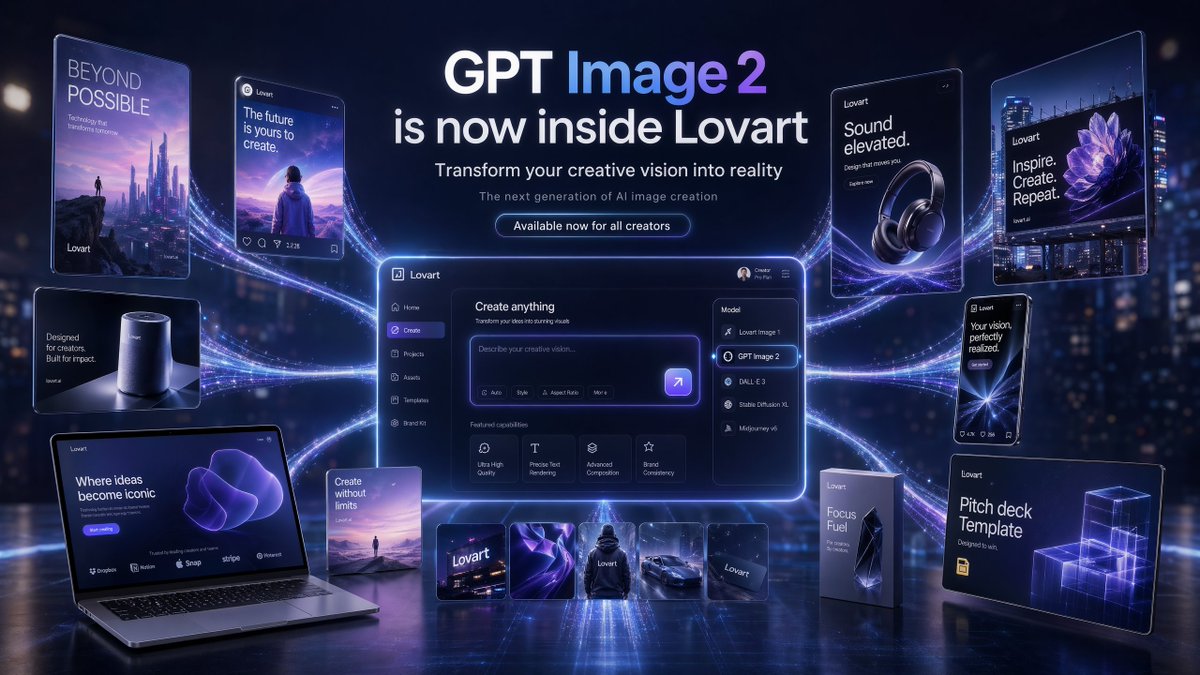
Generates a futuristic Chinese promotional banner for a GPT-Image2 AI design course with neon tech visuals, device mockups, and a bold central headline. Change the subject, setting, or lighting one variable at a time.

Goal: Create a wide futuristic Chinese online-course promotional banner for {argument name="course name" default="GPT-Image2"}, emphasizing AI image generation training from beginner setup to commercial design practice. Canvas: 16:9 horizontal banner, approximately 667×375 px, glossy blue-purple gradient background with a premium tech advertising look. Use strong depth, soft neon glows, and clean commercial composition. Layout: Place the main headline centered slightly left, in bold white Chinese sans-serif text with a subtle dark blue shadow. The headline has exactly 3 lines: line 1 “{argument name="headline line 1" default="GPT-Image2零基础到精通实操:"}”, line 2 “{argument name="headline line 2" default="从账号注册到商业海报,"}”, line 3 “{argument name="headline line 3" default="AI出图底层逻辑+全场景实战SOP"}”. Arrange supporting objects around it without covering the text. Visual style: High-end AI education campaign art, 3D rendered UI mockups mixed with polished vector light trails. Use a vivid electric-blue, cyan, violet, and magenta palette. Add flowing fiber-optic neon ribbons in the upper left corner, small star particles, subtle circuit-like connector lines, glassmorphism highlights, and soft shadows. Objects and counts: Include exactly 2 floating app-style square icons: one blue icon with a checkmark/refresh symbol on the left side, and one cream icon labeled “Ai” near the upper middle-right. Include exactly 2 large digital device mockups: one tablet or laptop screen in the upper right showing a clean analytics/dashboard interface with charts, cards, and a line graph; one large tablet in the lower right showing a dark design-software interface with toolbars and three poster designs on the canvas. Include exactly 5 vertical course-cover cards along the lower left edge, fanned horizontally; they should look like GPT-image lesson modules with blue/orange/black tech cover art, Chinese titles, and 3D cube or AI-design illustrations, but the small text may be stylized and not fully readable. Include exactly 3 connector-line segments linking the icons and devices, drawn as thin glowing angular wires. Subject details: The lower-right tablet should resemble a professional image-editing workspace, with a dark UI frame, top menu, side panels, color picker on the right, and three visible poster thumbnails colored orange, white/blue, and purple. The upper-right dashboard screen should be tilted in perspective with a white interface, blue header cards, charts, and a graph. Keep all objects floating above the gradient background. Constraints: No people, no watermark, no logos other than the generic “Ai” icon. Keep the central Chinese headline crisp, perfectly legible, and dominant. Maintain a modern commercial training-ad aesthetic suitable for a social media course promotion.
Choose the primary action to open PicX Studio with the available template settings. Review the model and format, personalize the creative direction, and generate when ready.
Yes. You can change the subject, setting, lighting, mood, format, and available model controls before creating your image.
This template is free to open and customize. Generation usage is shown in PicX Studio before you create.
Start with GPT Image 2, which is the model associated with this template. You can compare another compatible model for a different finish.
© 2026 PicX Studio. All rights reserved.

Follow a topic to a crawlable collection of related PicX Studio templates.
43,474 public templates available. Verified via the PicX Studio public templates API; refreshed hourly.















![Minimalist Flat Vector Travel Poster — Premium minimalist flat-vector travel poster for {argument name="city name" default="[CITY_NAME]"}, 3:4 vertical format.](https://cms-assets.youmind.com/media/1787917359711_3ug846_HQX205cbMAA6F6S-300x400.jpg)