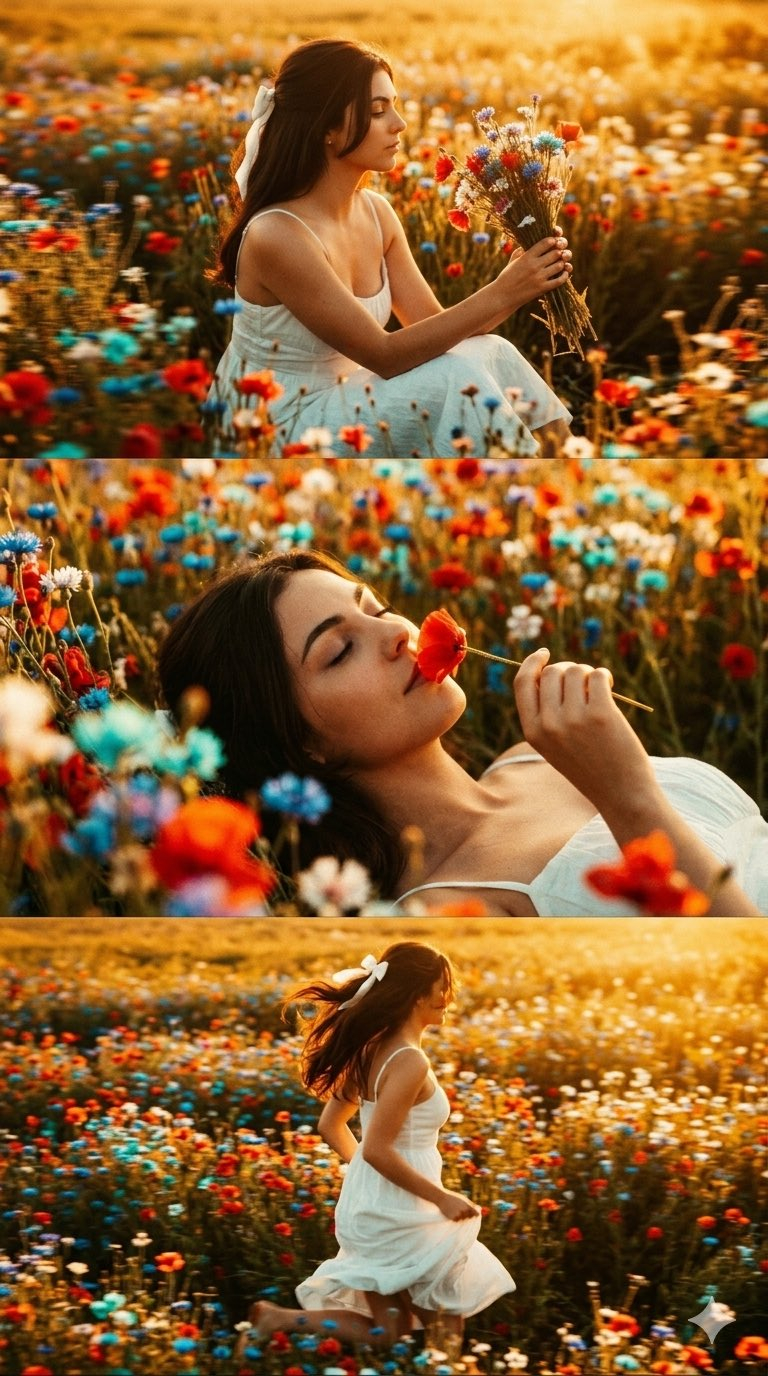
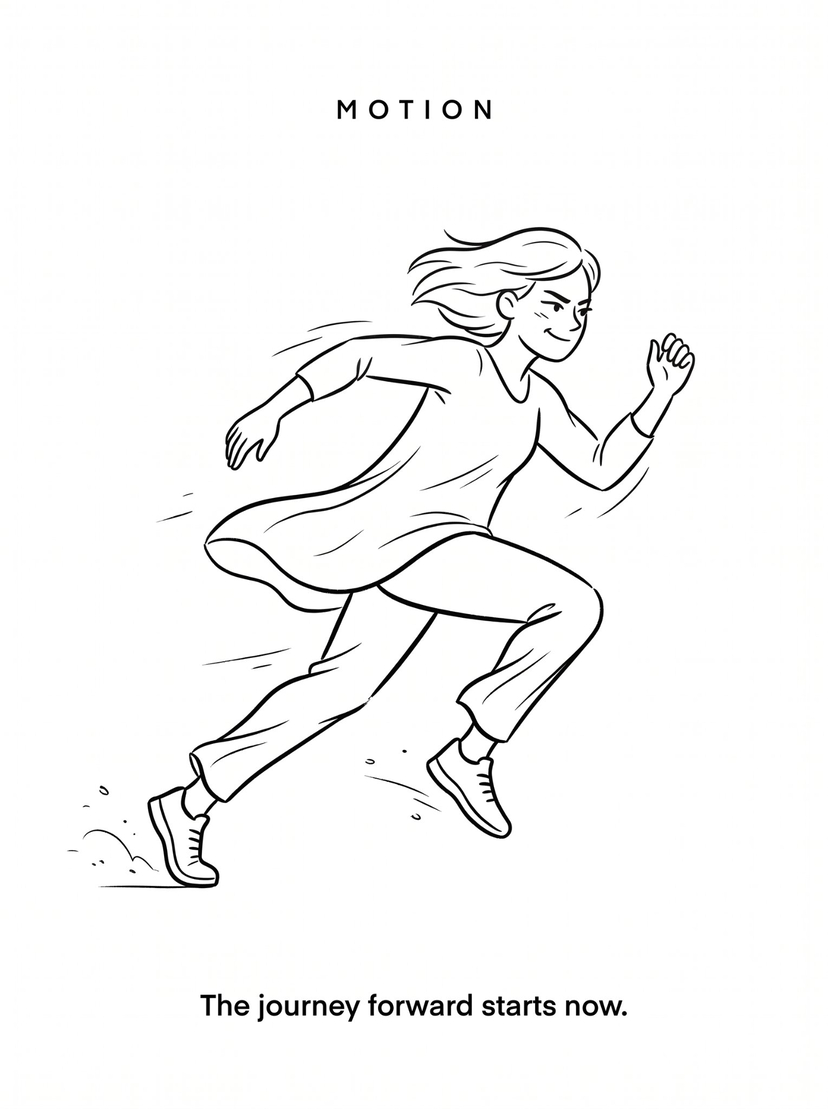
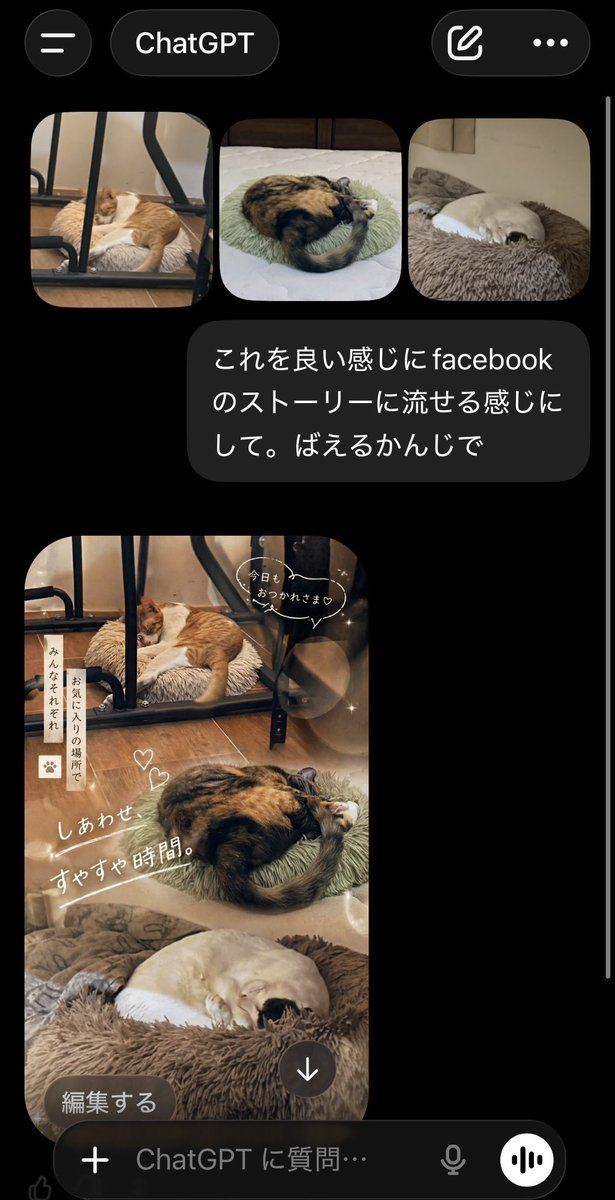
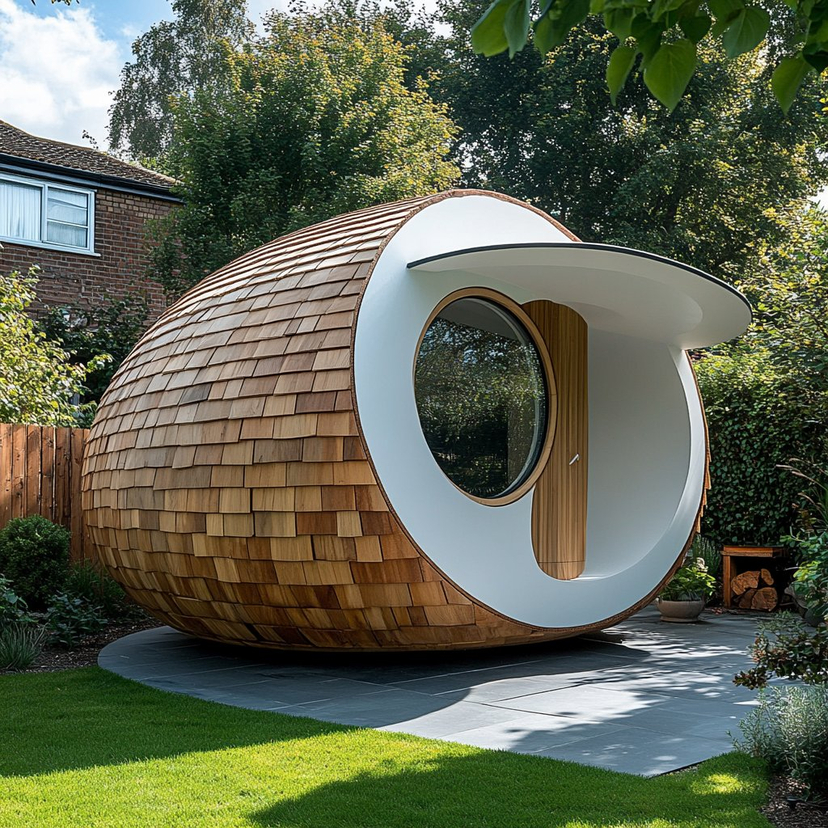
How do I use the ChatGPT Portrait Result Screenshot template?
Choose the primary action to open PicX Studio with the available template settings. Review the model and format, personalize the creative direction, and generate when ready.
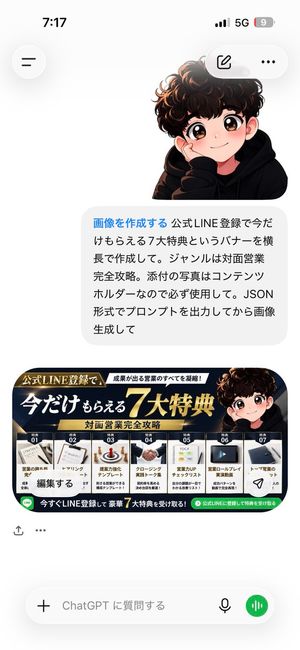
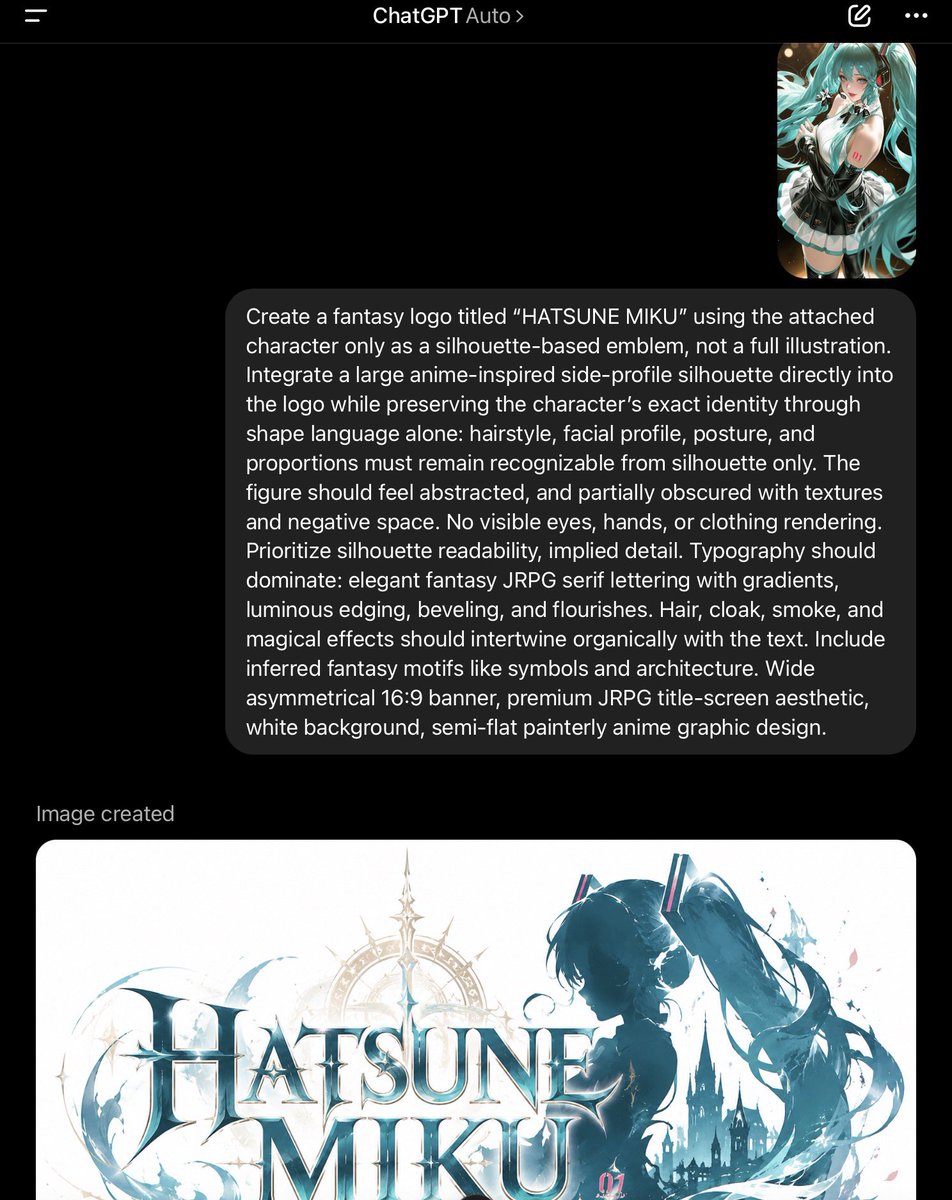
Generates a minimal ChatGPT-style interface showing a realistic censored portrait result from a simple Chinese prompt.
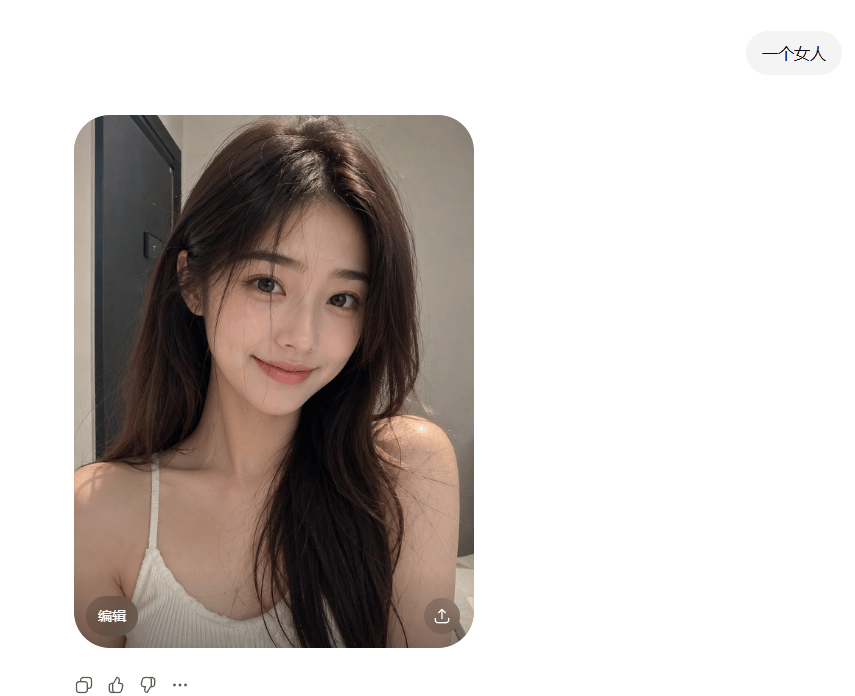
Create a clean screenshot-style ChatGPT image generation result on a white interface. In the upper right, place one rounded light-gray prompt pill containing the Chinese text {argument name="prompt text" default="一个女人"}. The main content is one large rounded-rectangle photo card positioned left of center, with heavily rounded corners. Inside the card is a realistic indoor selfie-style portrait of {argument name="subject" default="a young woman"} from the chest up, seated or leaning forward in a small bathroom or dressing-room-like interior. She has long, slightly messy dark brown hair with soft volume, bare shoulders, and wears a white ribbed spaghetti-strap camisole. The lighting is warm and natural, with a gray wall behind her and a dark vertical doorframe or cabinet edge on the left. Her face is completely covered by one centered vertical rectangular censor block in a muted brown skin-tone color, obscuring all facial features. On the bottom-left corner of the photo card, include one small translucent dark rounded button labeled “Edit” in English. On the bottom-right corner of the photo card, include one small translucent dark circular share/download icon. Below the image card, show exactly four small interface controls aligned horizontally: copy icon, thumbs-up icon, thumbs-down icon, and three-dot more icon. Keep the overall composition minimal, with generous white margins, no watermark, and no extra text.
Choose the primary action to open PicX Studio with the available template settings. Review the model and format, personalize the creative direction, and generate when ready.
Yes. You can change the subject, setting, lighting, mood, format, and available model controls before creating your image.
This template is free to open and customize. Generation usage is shown in PicX Studio before you create.
Start with GPT Image 2, which is the model associated with this template. You can compare another compatible model for a different finish.
© 2026 PicX Studio. All rights reserved.

Follow a topic to a crawlable collection of related PicX Studio templates.